
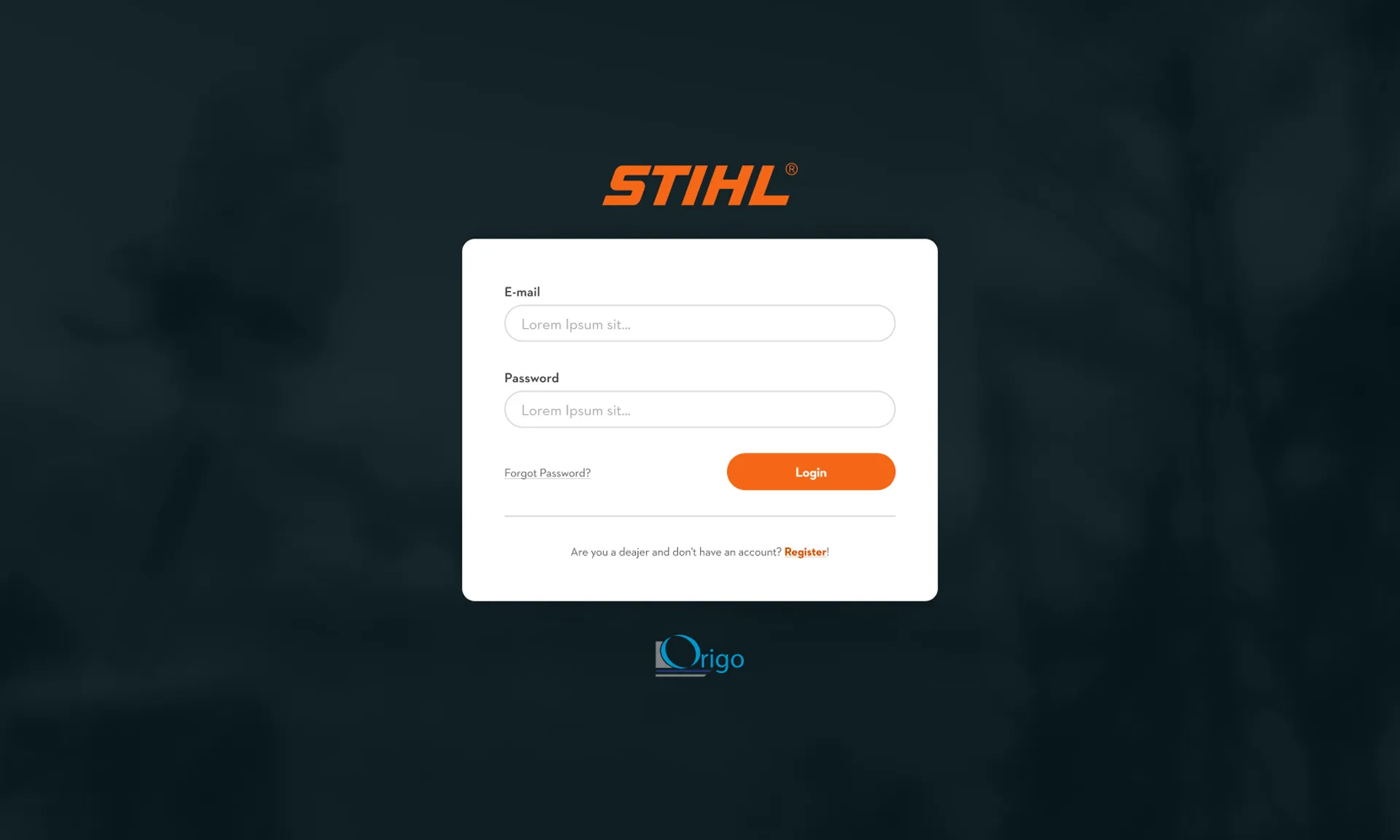
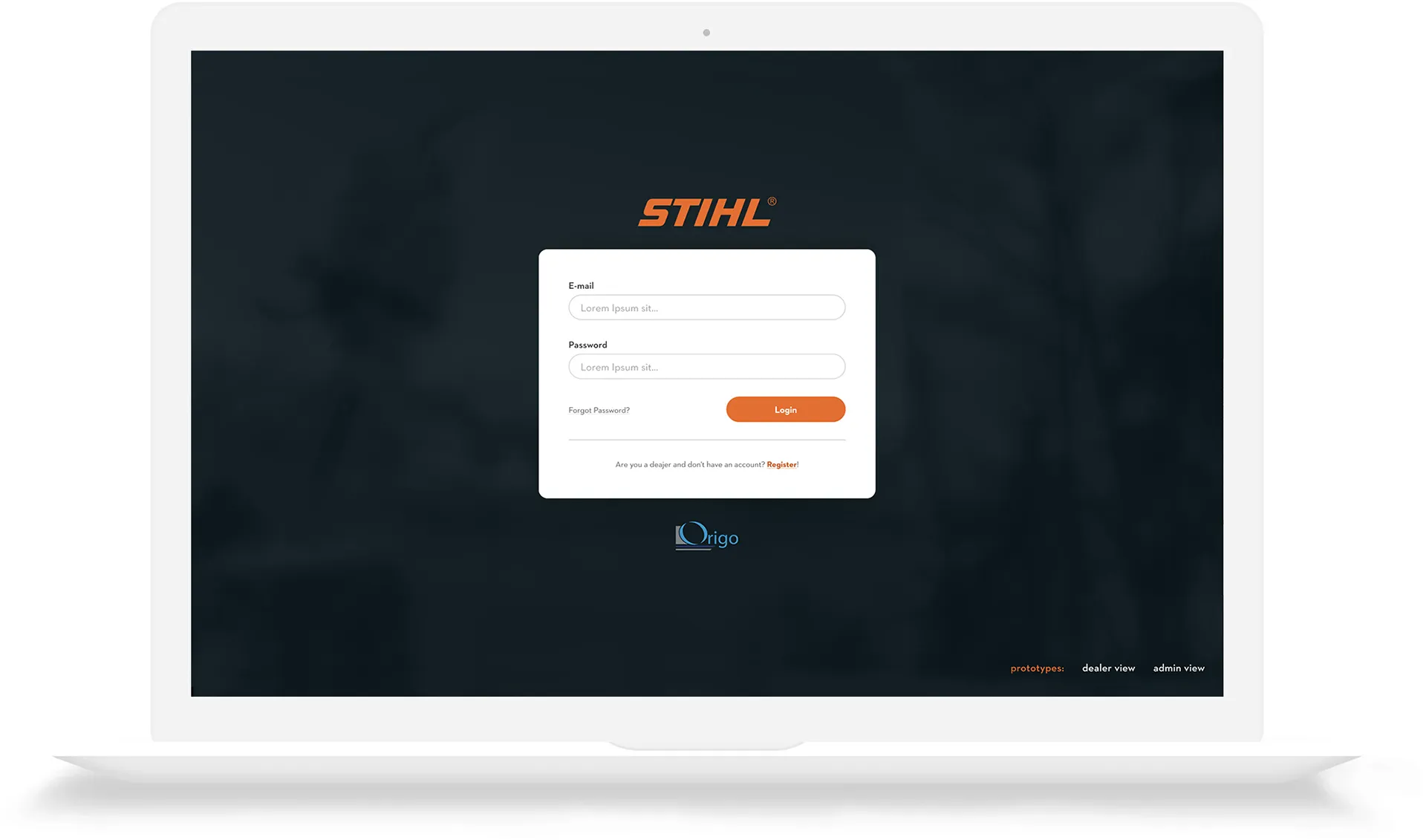
01. Login
If they have an account, Stihl dealers across Ireland, can log into the app using the above.
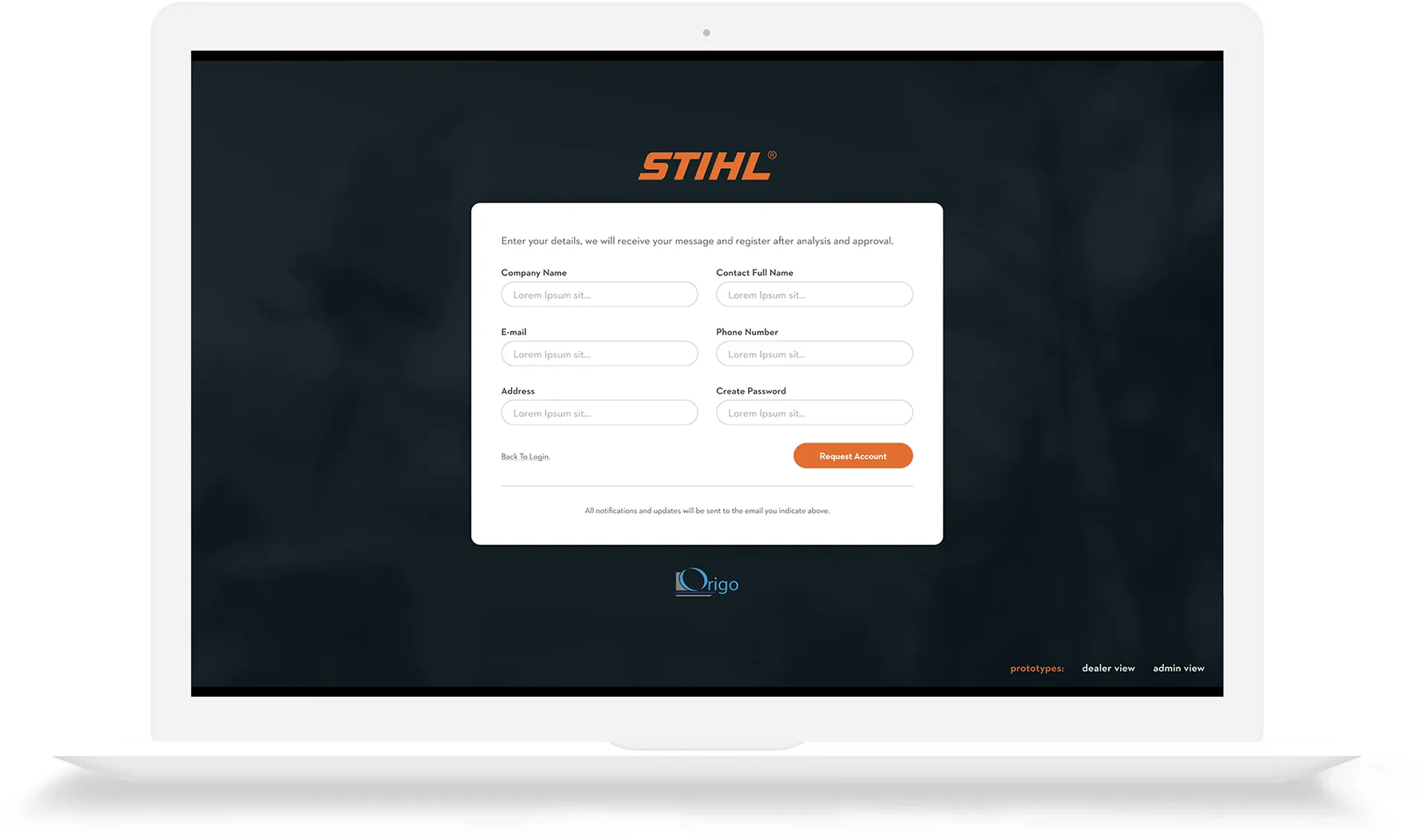
02. Register
If they the dealer doesn't have an account, they register for one. The admin can decide to approve.
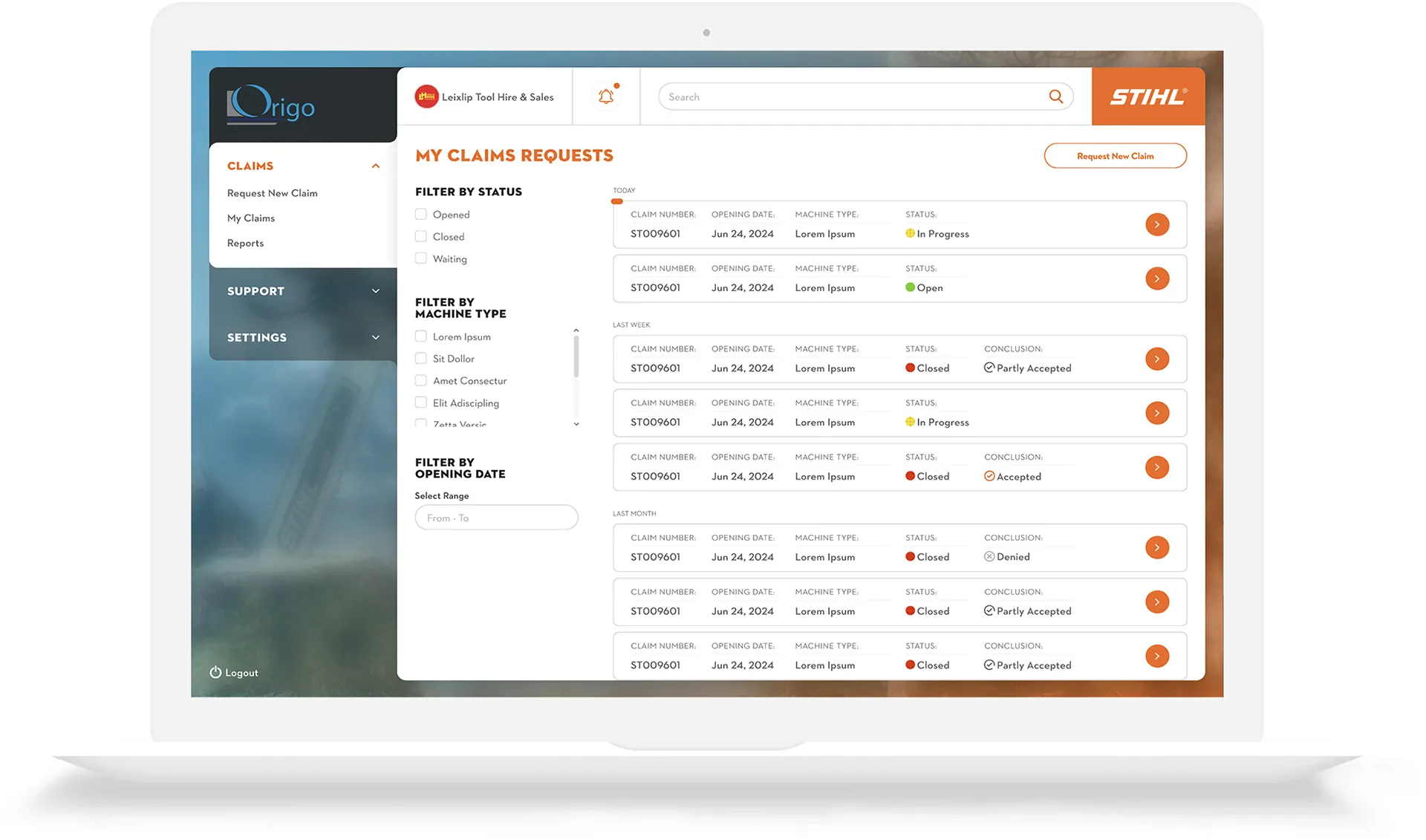
01. View all Claim Requests
The dealer can view all of their tickets. They can filter their tickets by statues (open, in progress, or closed). They can also filter by machine type and logging date. Dealers can report new claims from this screen too.
02. Create New Ticket
Lorem ipsum dolor sit amet, consectetur adipiscing elit. Ut elit tellus, luctus nec ullamcorper mattis, pulvinar dapibus leo.
03. Reports
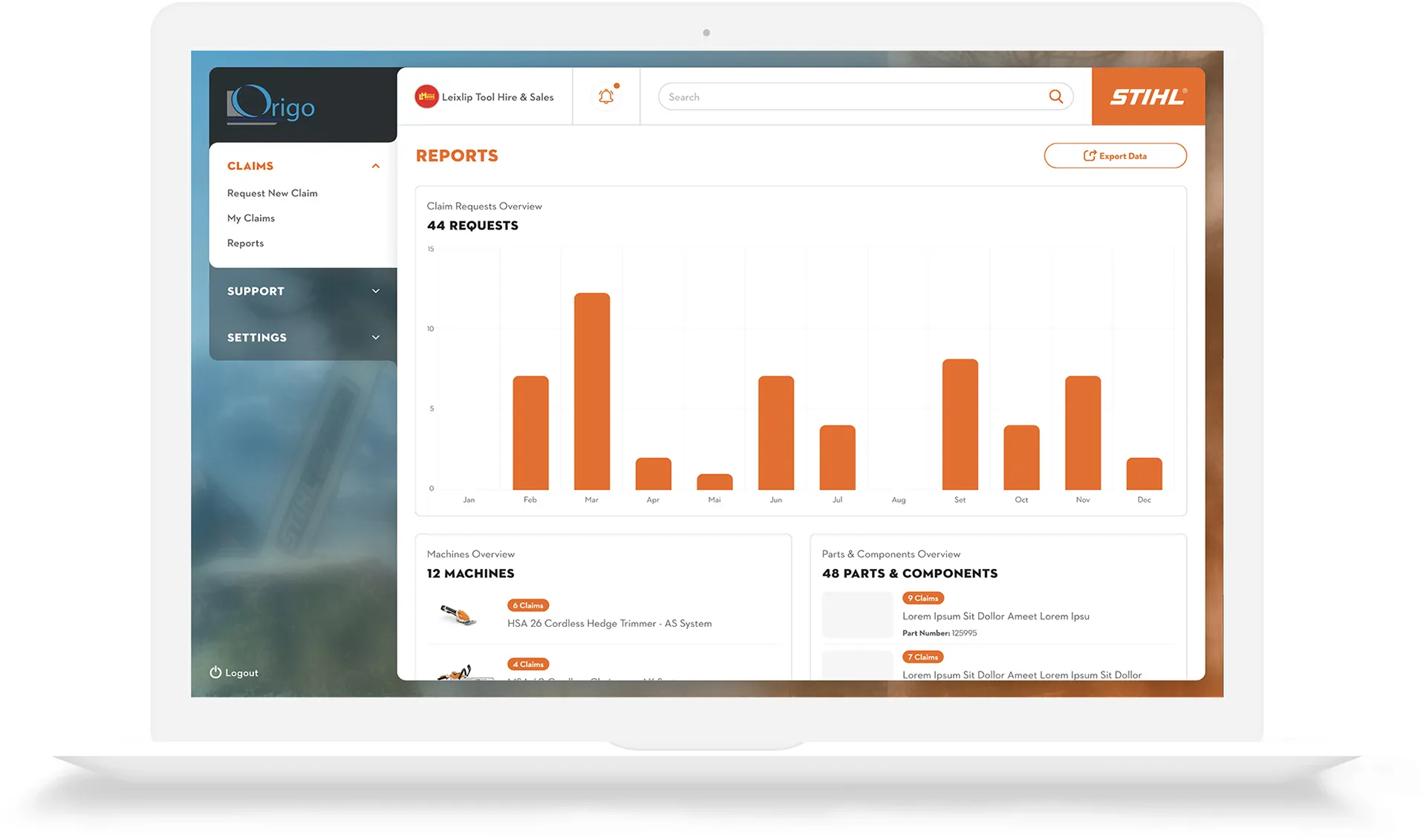
The dealer can view reports of their claims to date. A bar chart show logged tickets on a monthly basis. Dealers also have the option to export data.
01. Instructions & Terms
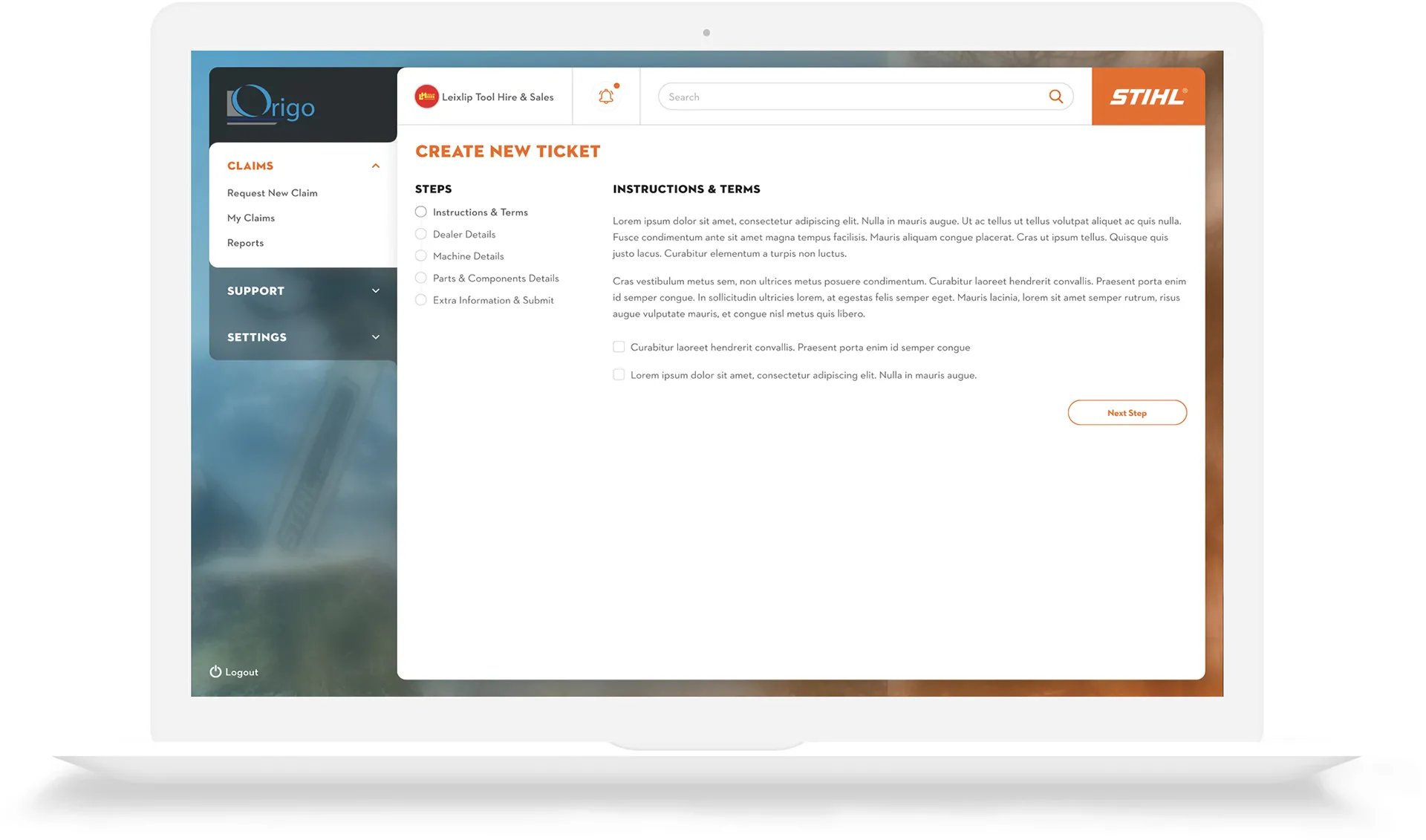
This screen explains what the dealer needs to do in order to log a new claim.
02. Dealer Details
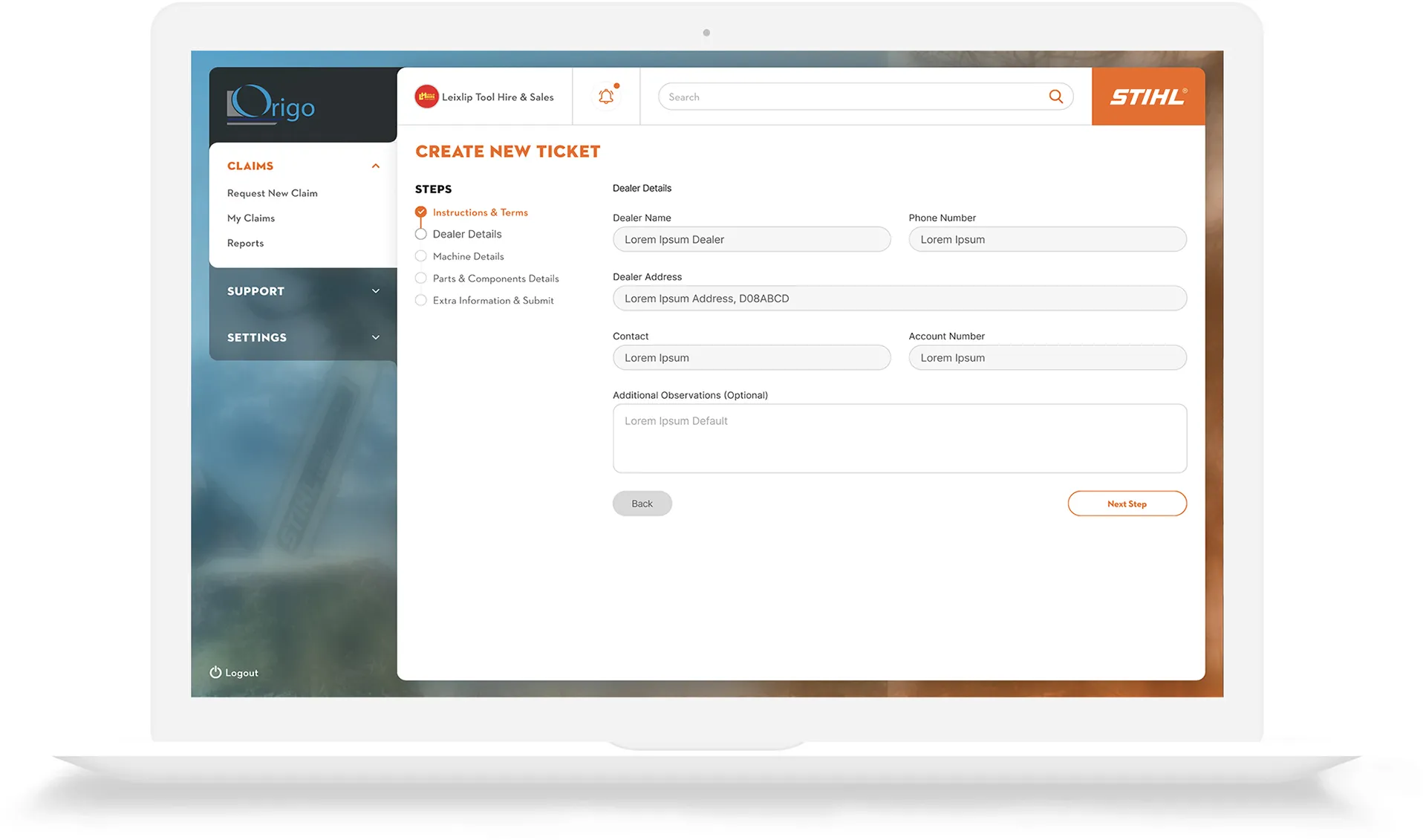
The dealer fills in all the required details.
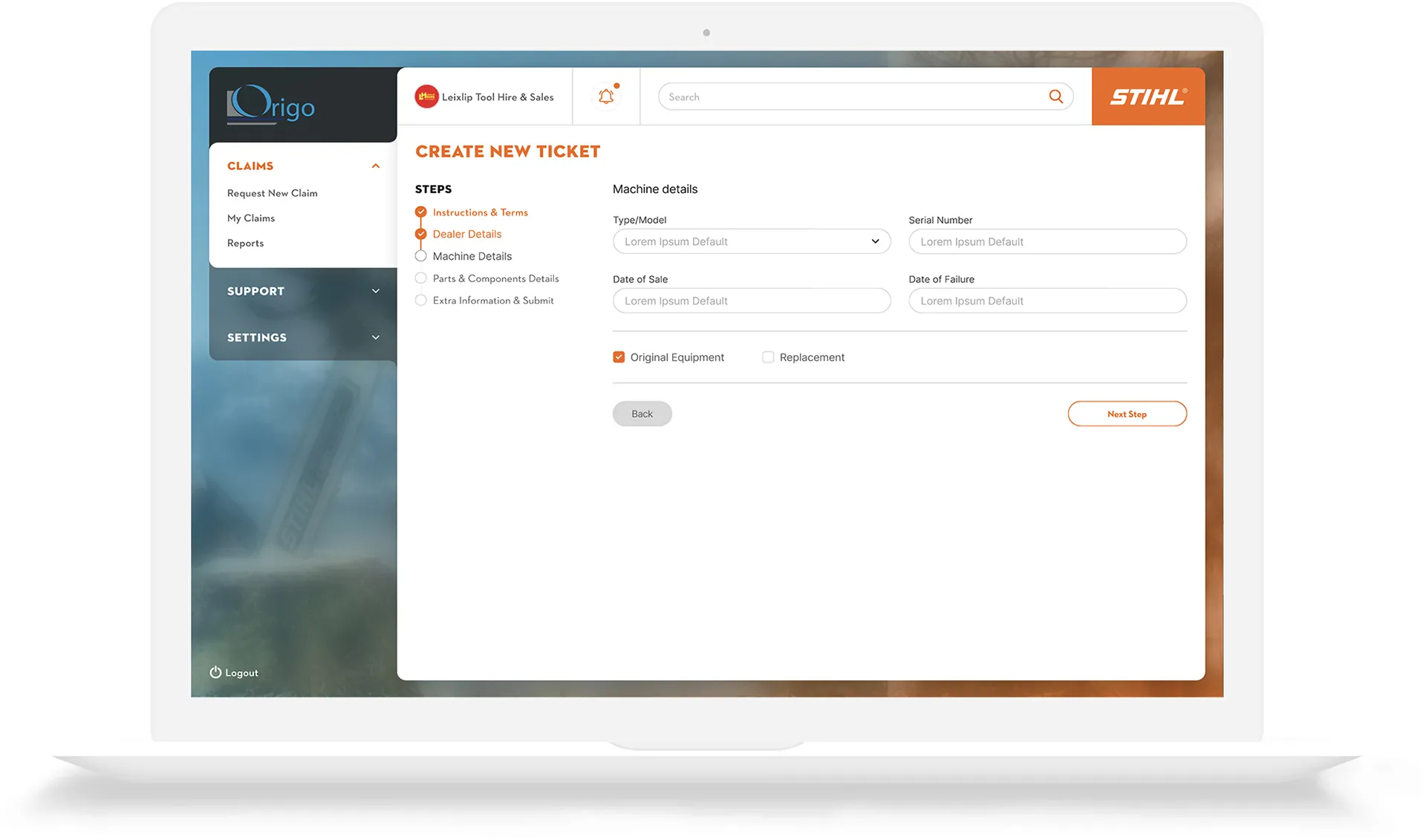
03. Machine Details
The dealer adds in relevant information such as the serial number, date of failure and whether the item was original new equipment or a replacement.
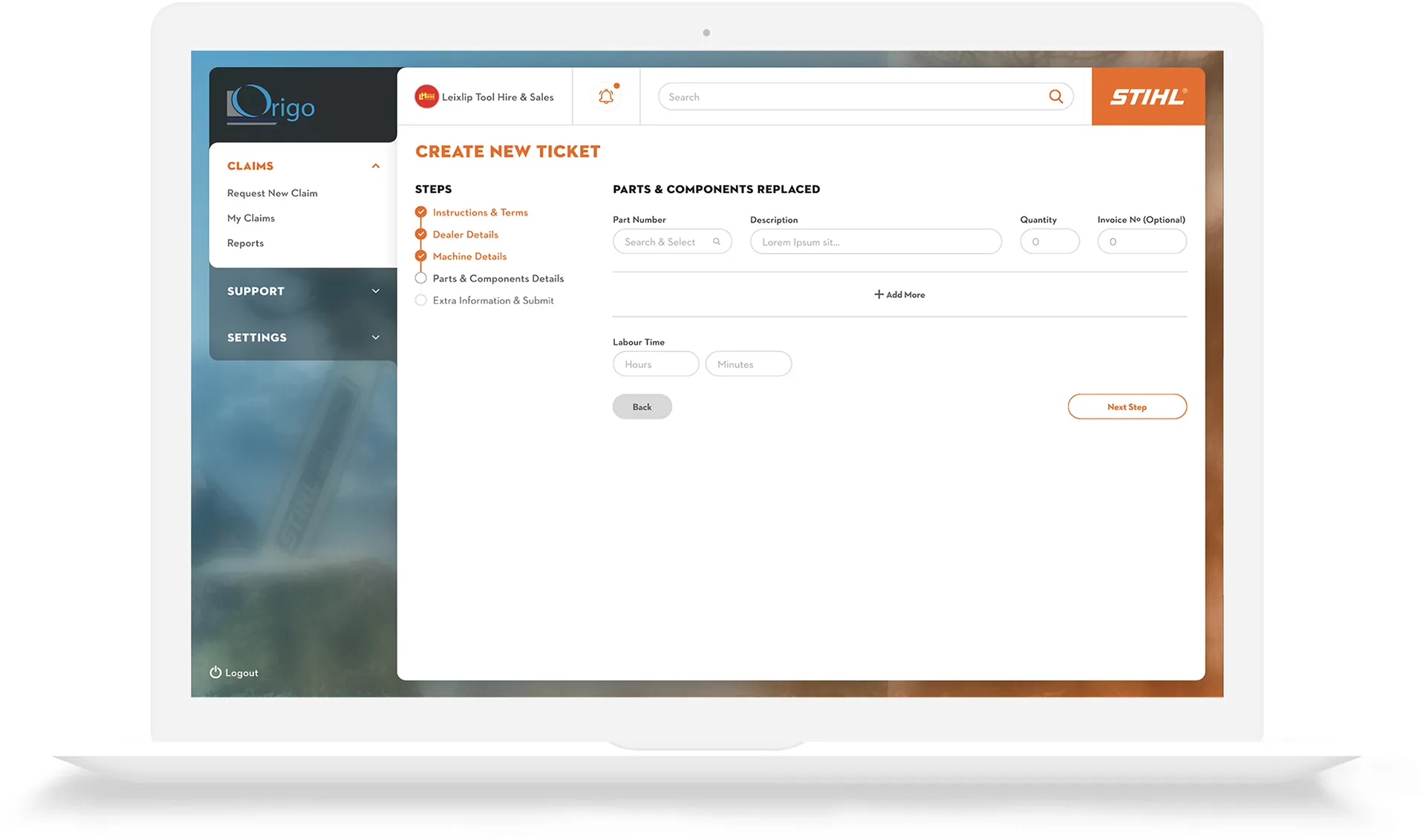
04. Parts & Components Replaced
Details about the parts can be added here including the part number, the quantity and the invoice number. More parts can be added by clicking on the "Add More" button.
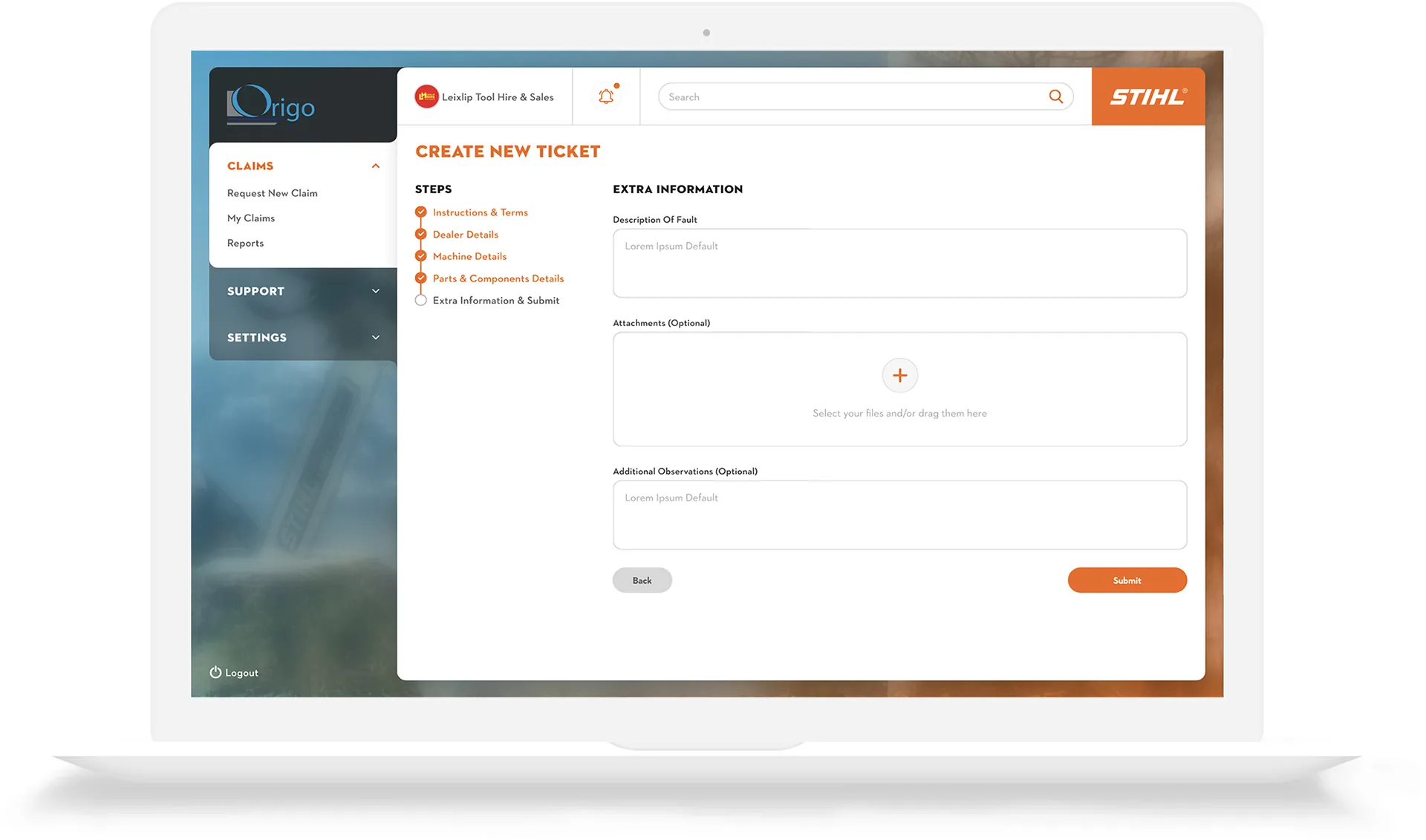
05. Extra Information
The Stihl dealer can provide more details for the claim. They can describe the fault, upload images, additional documents and PDFs.
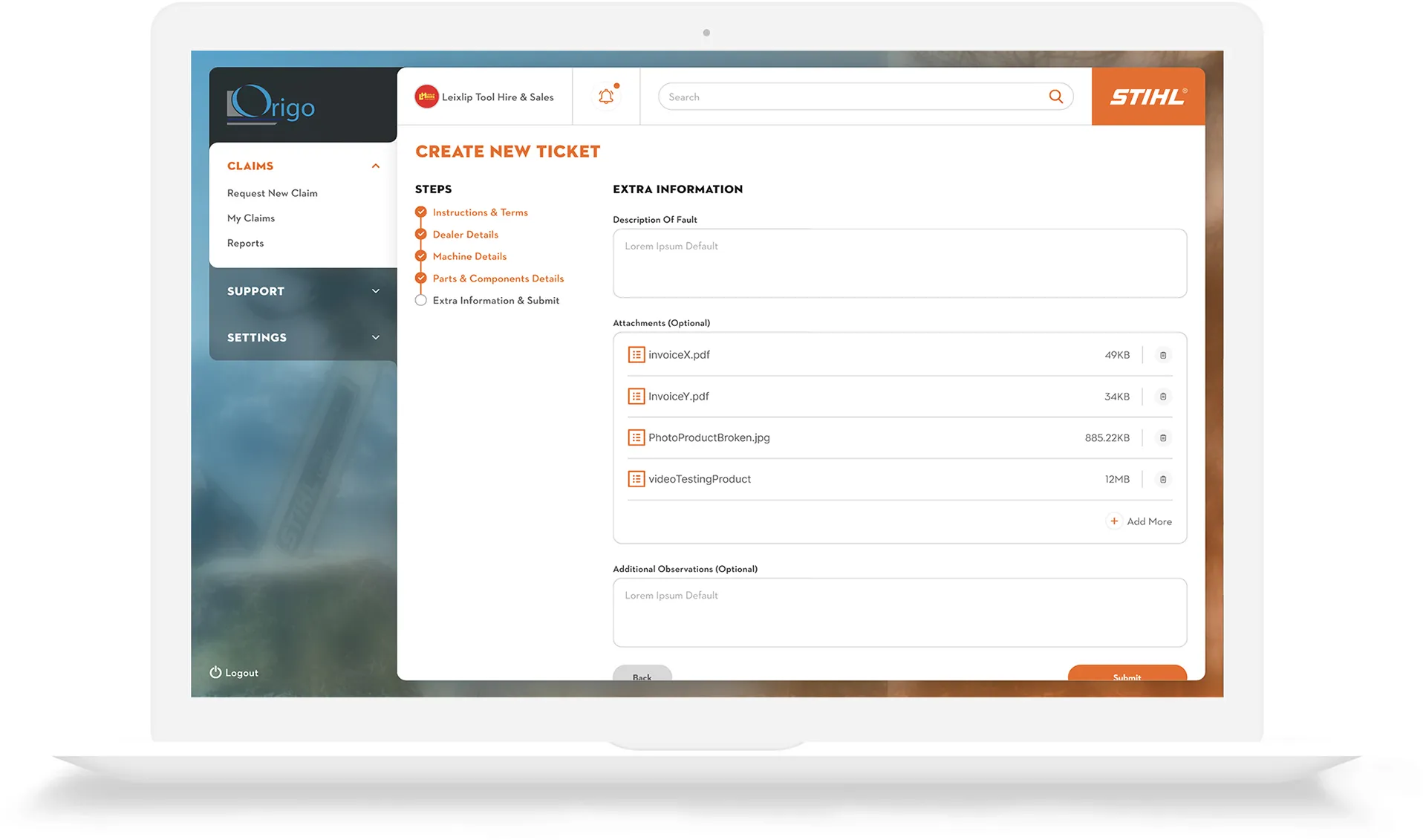
06. Submit Ticket
After filling out the relevant information and uploading their files, the dealer can then submit the ticket.
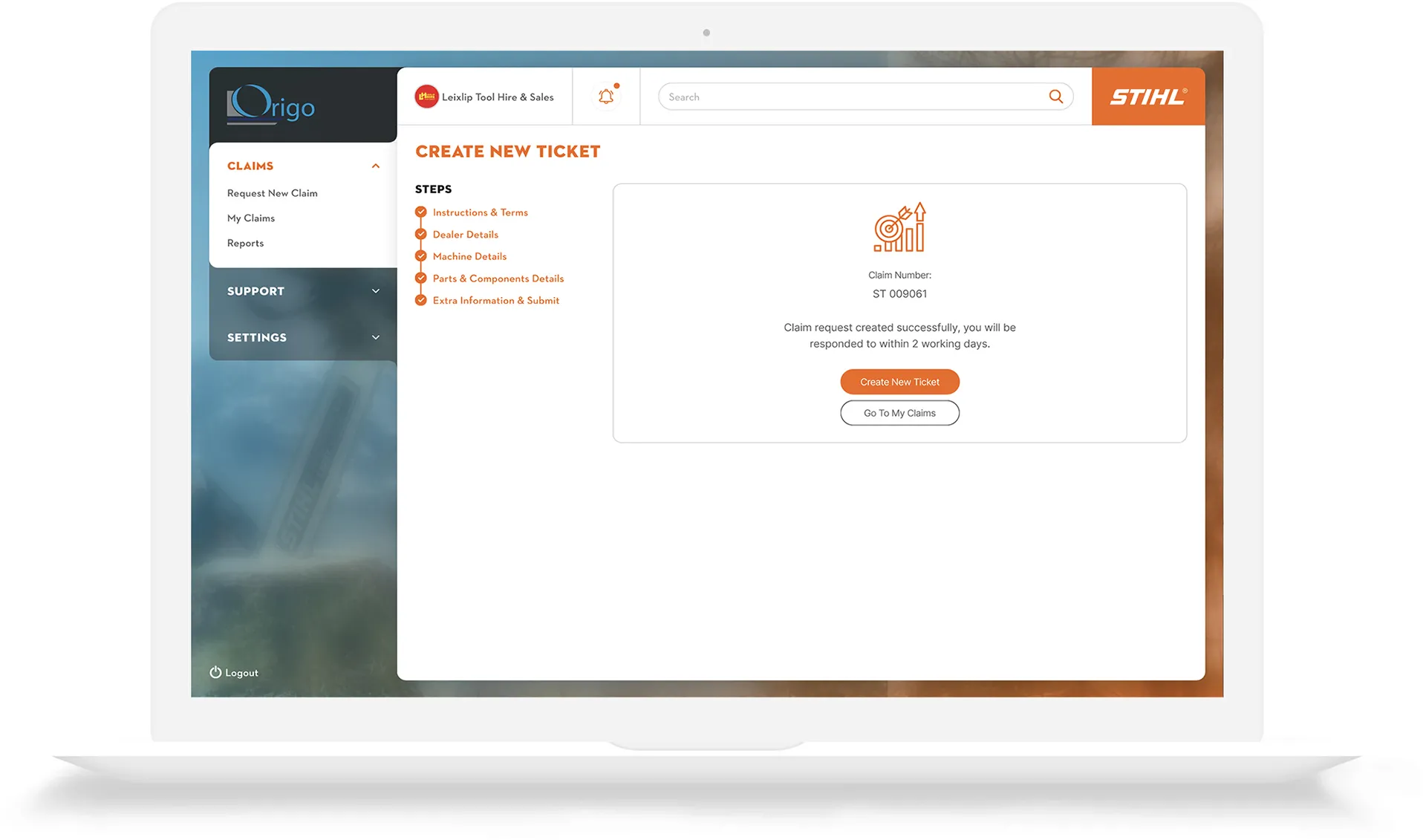
07. Create another ticket or view claims
After submitting the ticket, the dealer now has the option to create a new ticket or view their claims fo far.
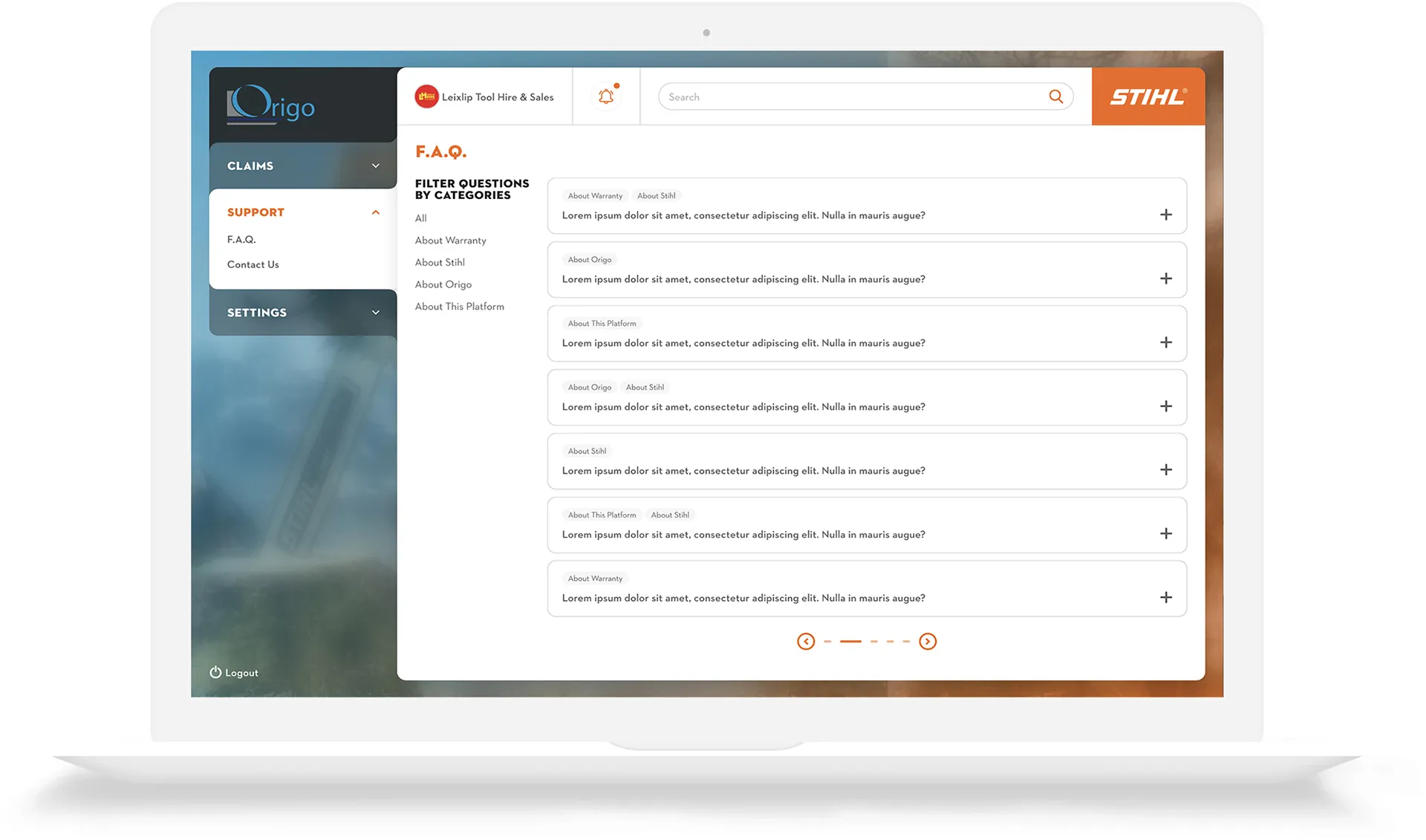
01. FAQ
A list of FAQs is provided. The dealer can filer the questions. Upon clicking on a particular question, the FAQ will reveal information in a accordian widget.
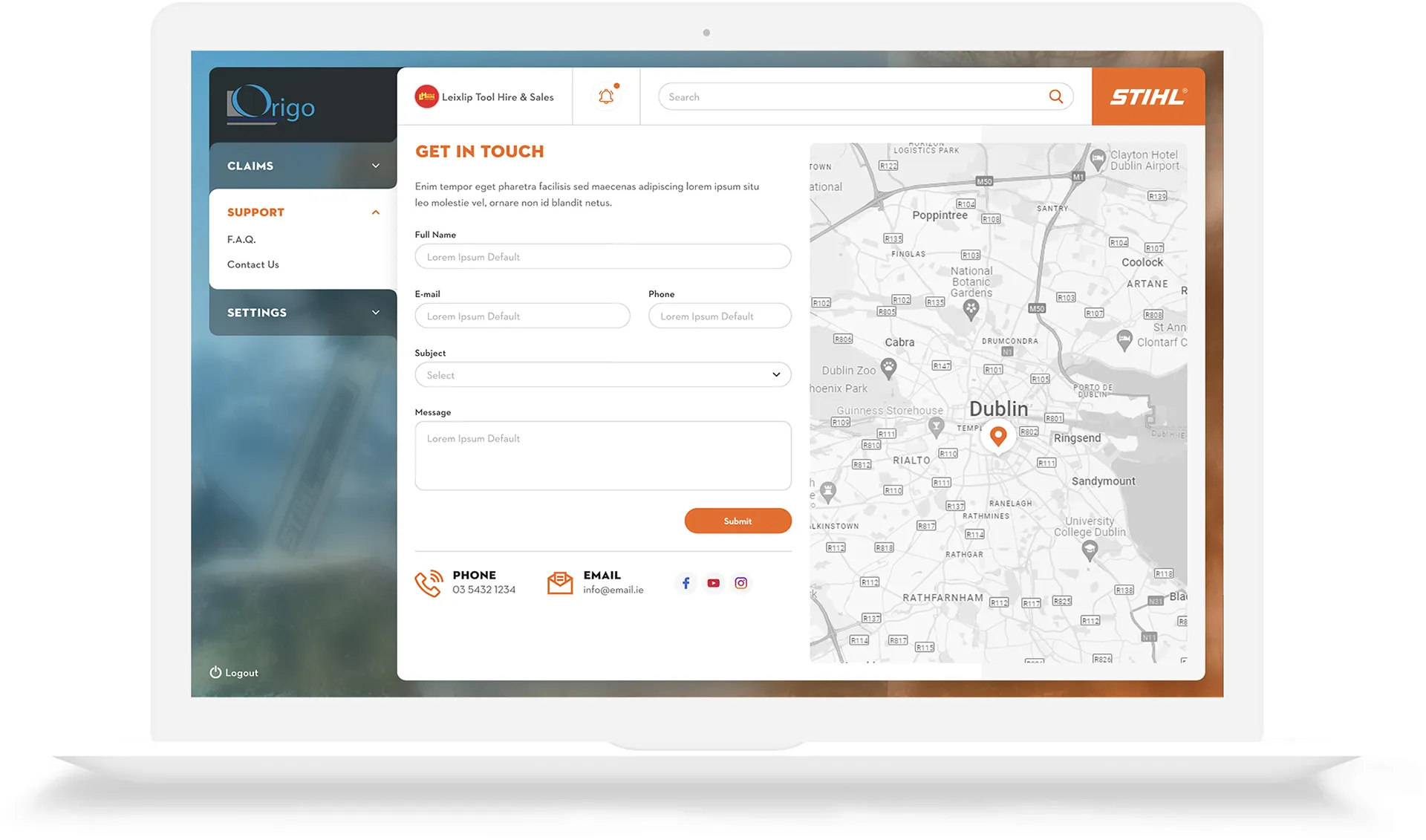
02. Get in Touch
Dealers can use the fiom to subit a message to Origo. They can aslos view Origo's map location and are provided with contact details and information for Origo's social media.
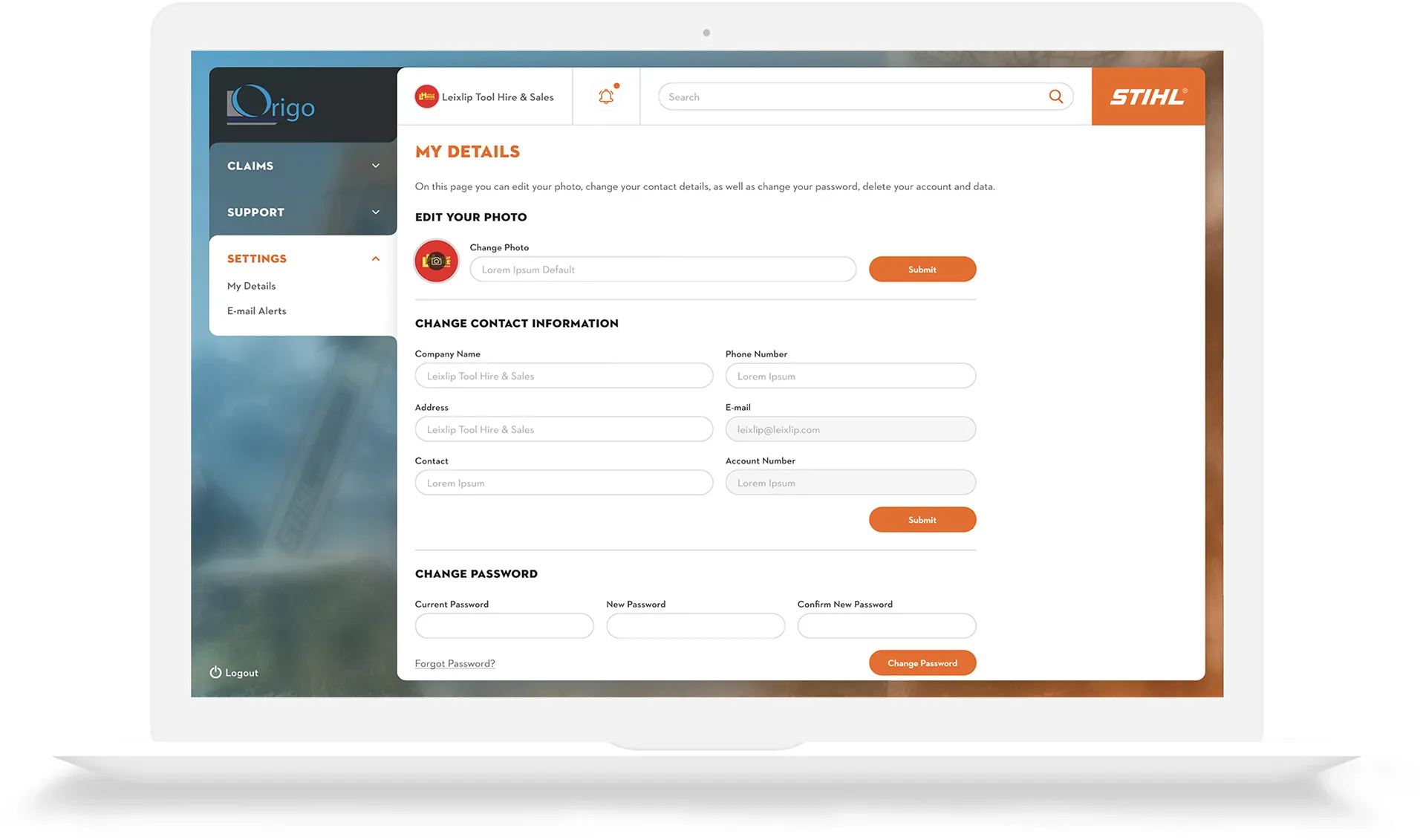
01. My Details
Dealers can edit their account details such as their photograph, contact information and password. They can also delete their account and date if they so wish.
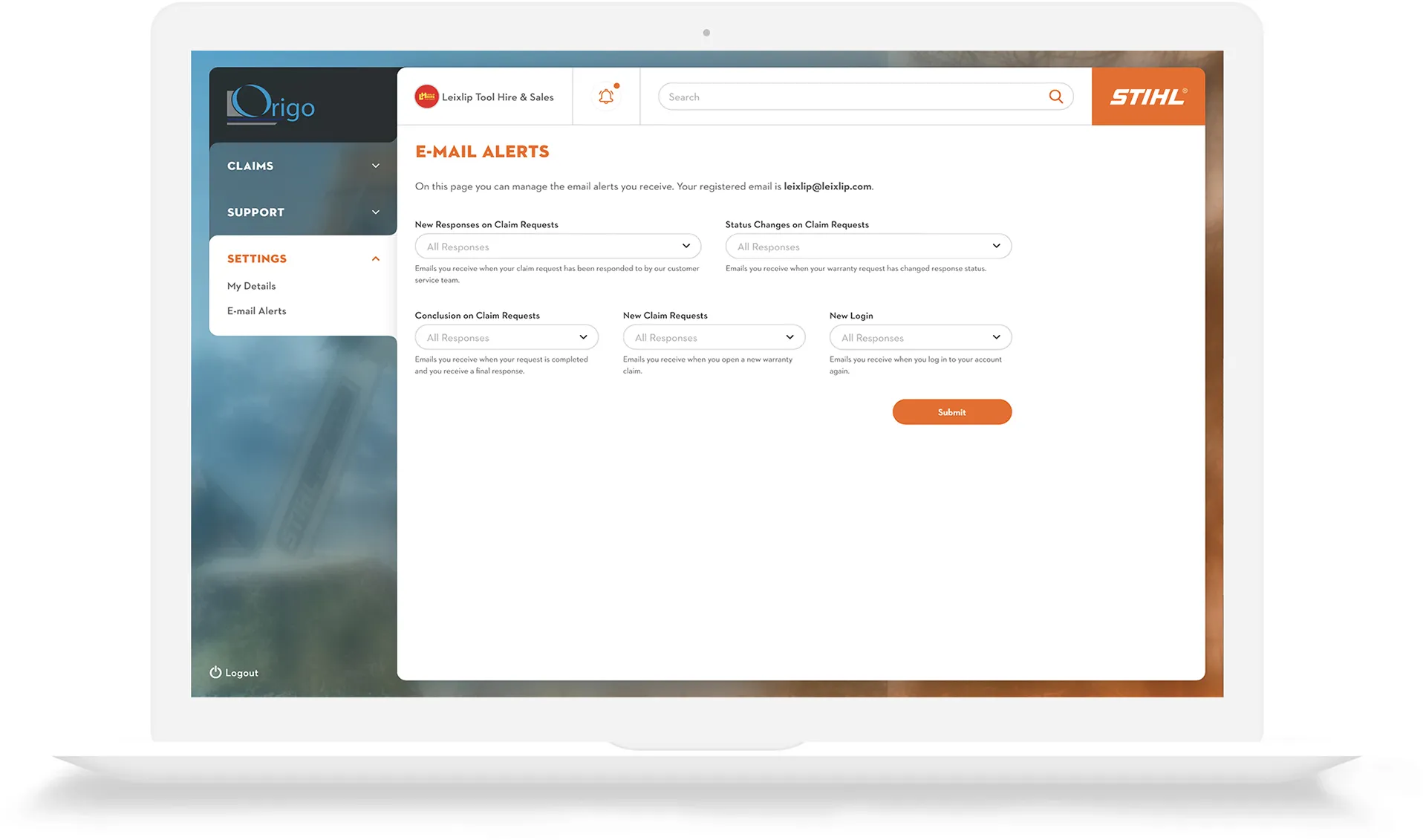
02. Email Alerts
All email alerts can be managed from here.
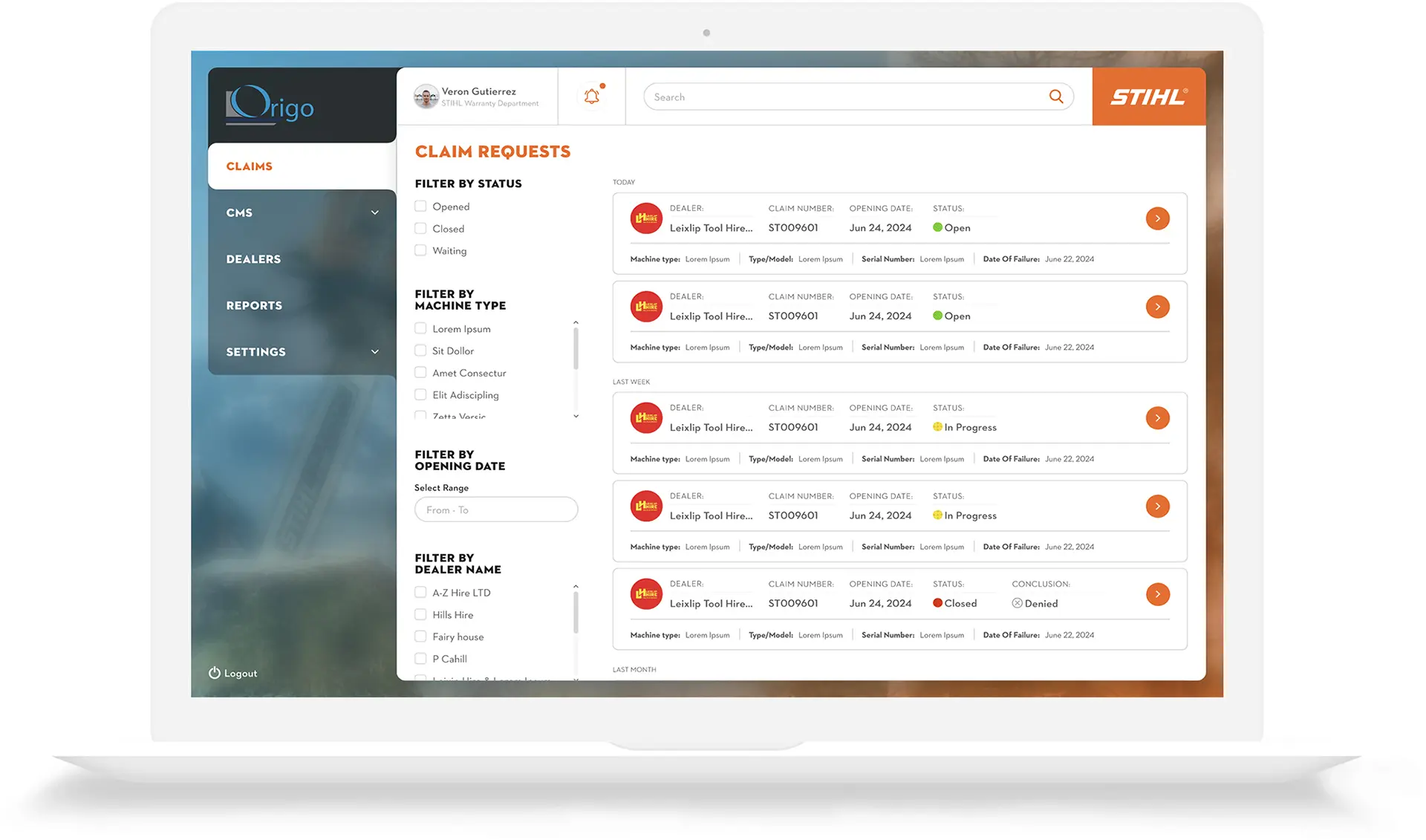
01. View all Claim Requets
Claim requests are filterable by status, machine type, opening date and dealer name. By clicking on the orange arrow icon to the right of each ticket, admin can view each claim in greater detail.
02. Examine Individual Claims
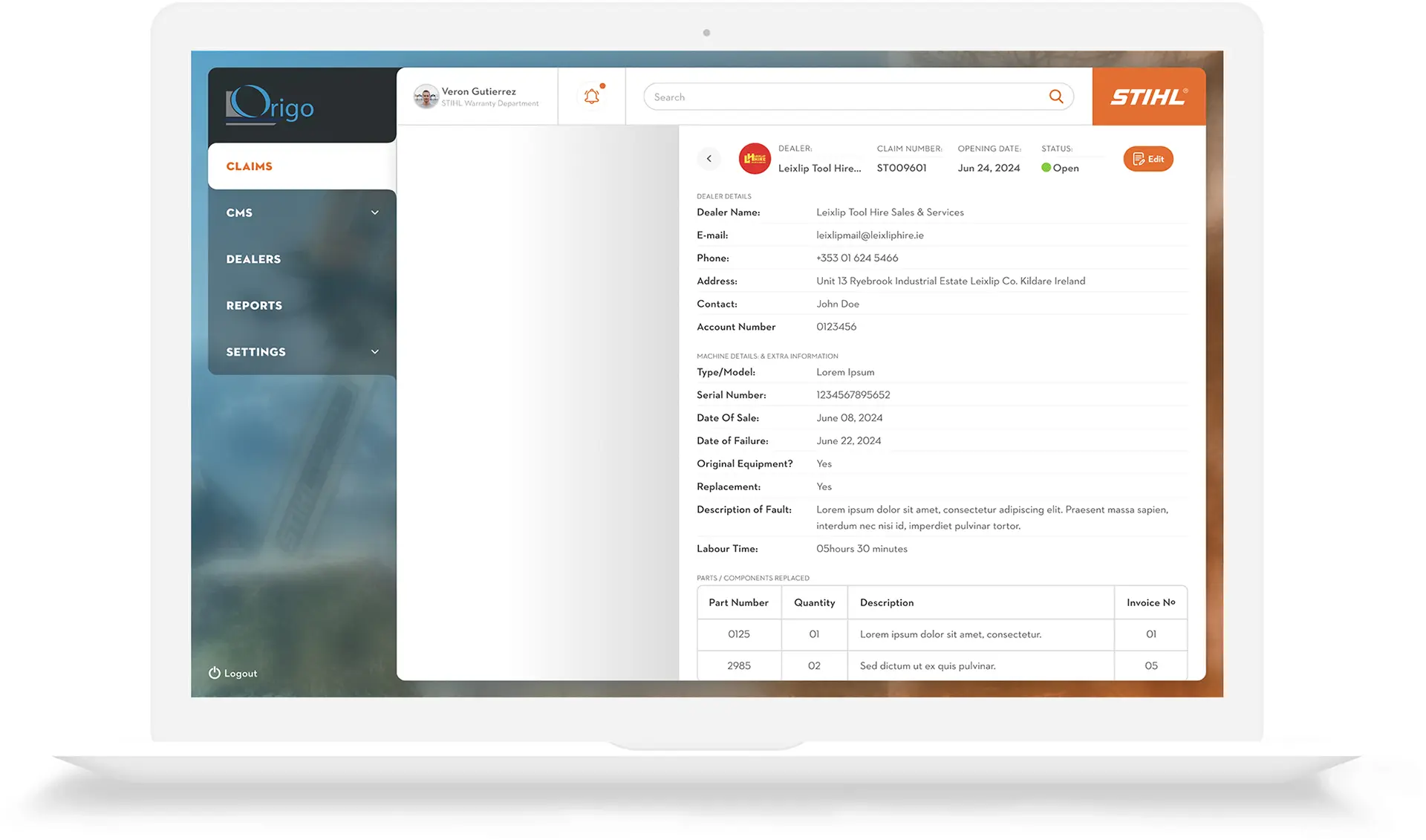
Admin can examine all date relating to the dealer's claims ticket. In addition to the name and contact details of the dealer, admin can see the date the unit was originally sold, and when it failed.

01. Edit FAQ
FAQs can be edited and also deleted. New answers can be added too.
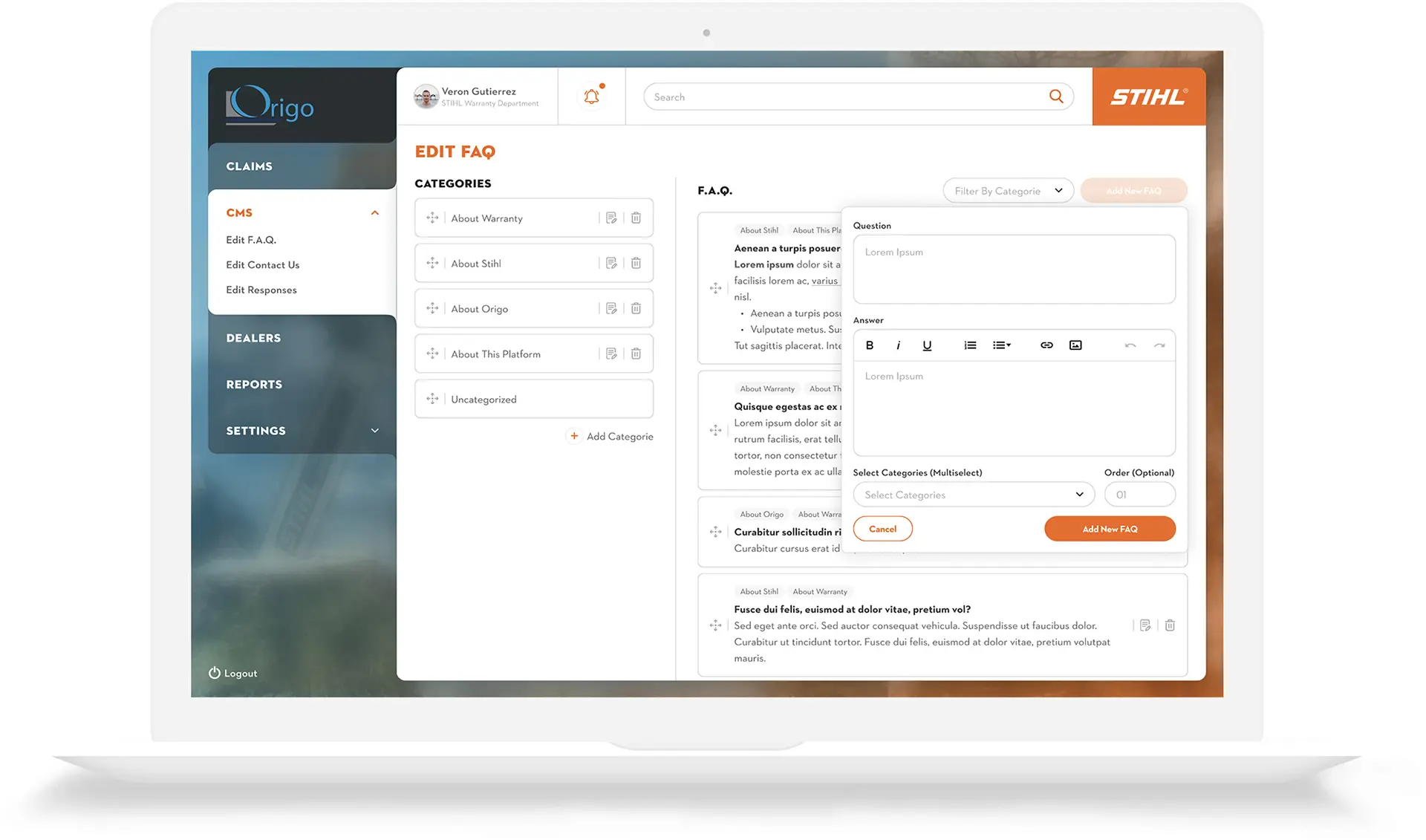
02. Edit FAQ
Adding a new FAQ is a simple process. Select the category, type in the new question and answer and then hit the "Add" button. New categories can be added in the left-hand column.
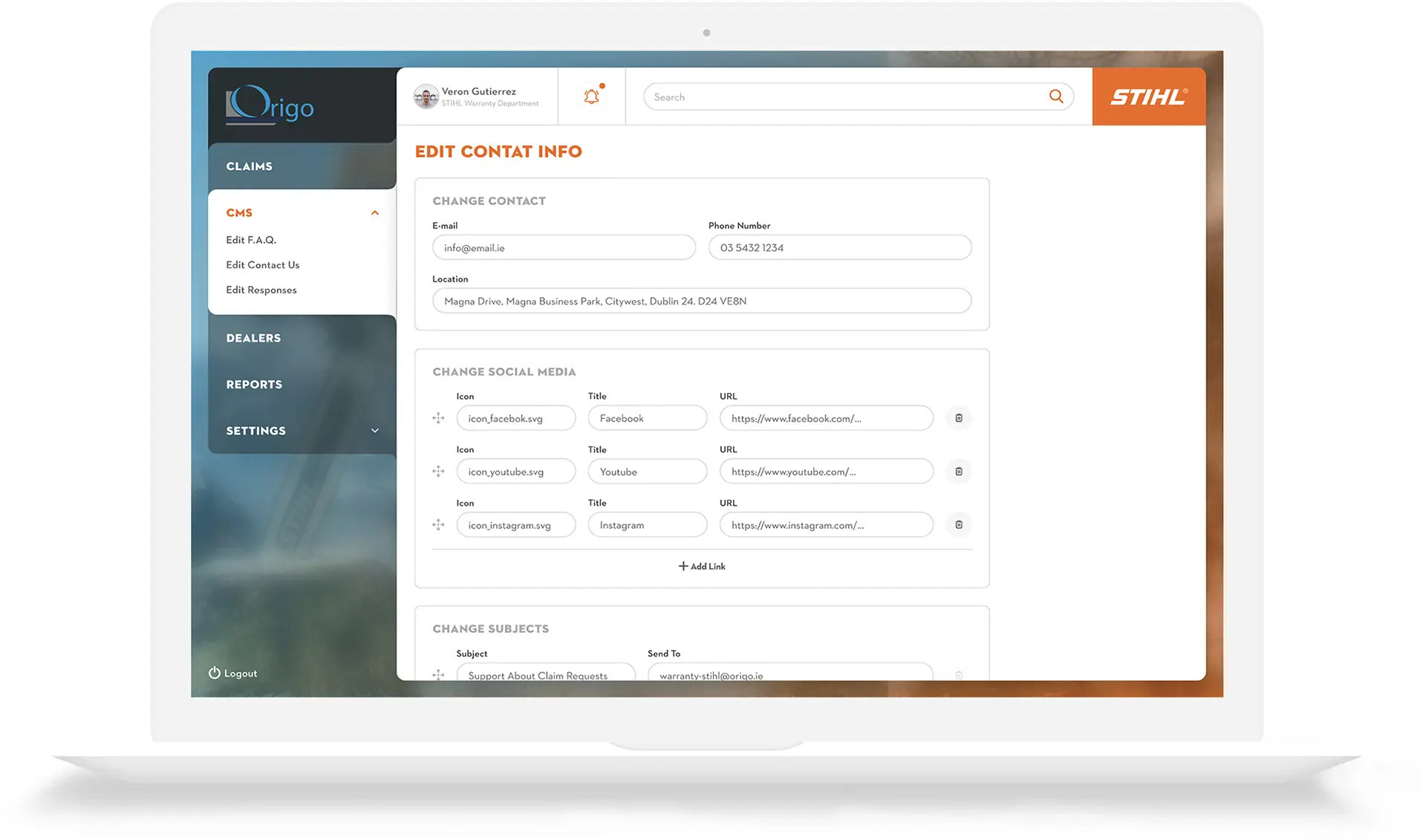
03. Edit Contact Us Info
Contact information can be easily amended. Social media icons and URLs can also be changed.
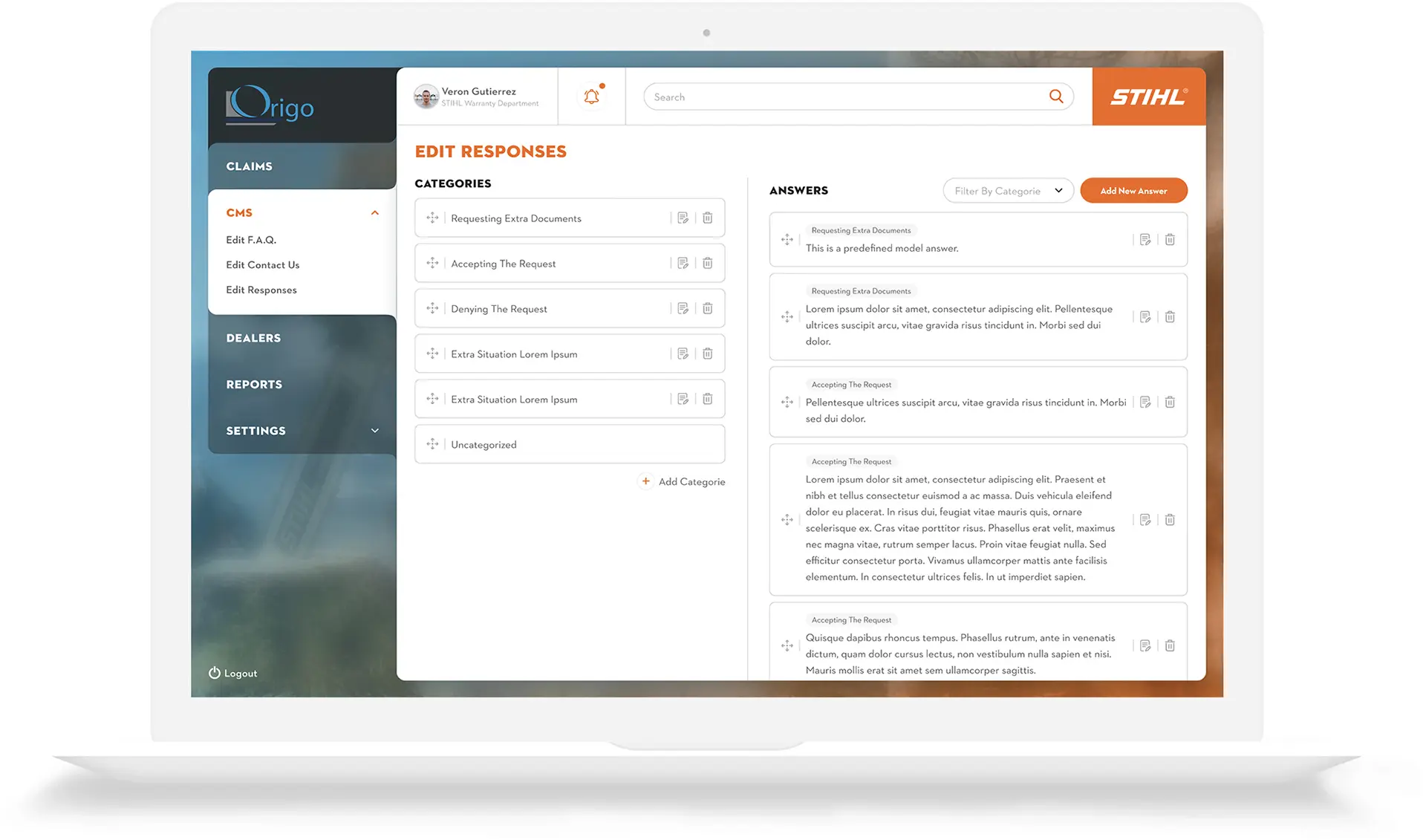
04. Edit Responses
The Stihl app carries pre-formatted responses for dealer's queries. They can be added, amended and deleted here.
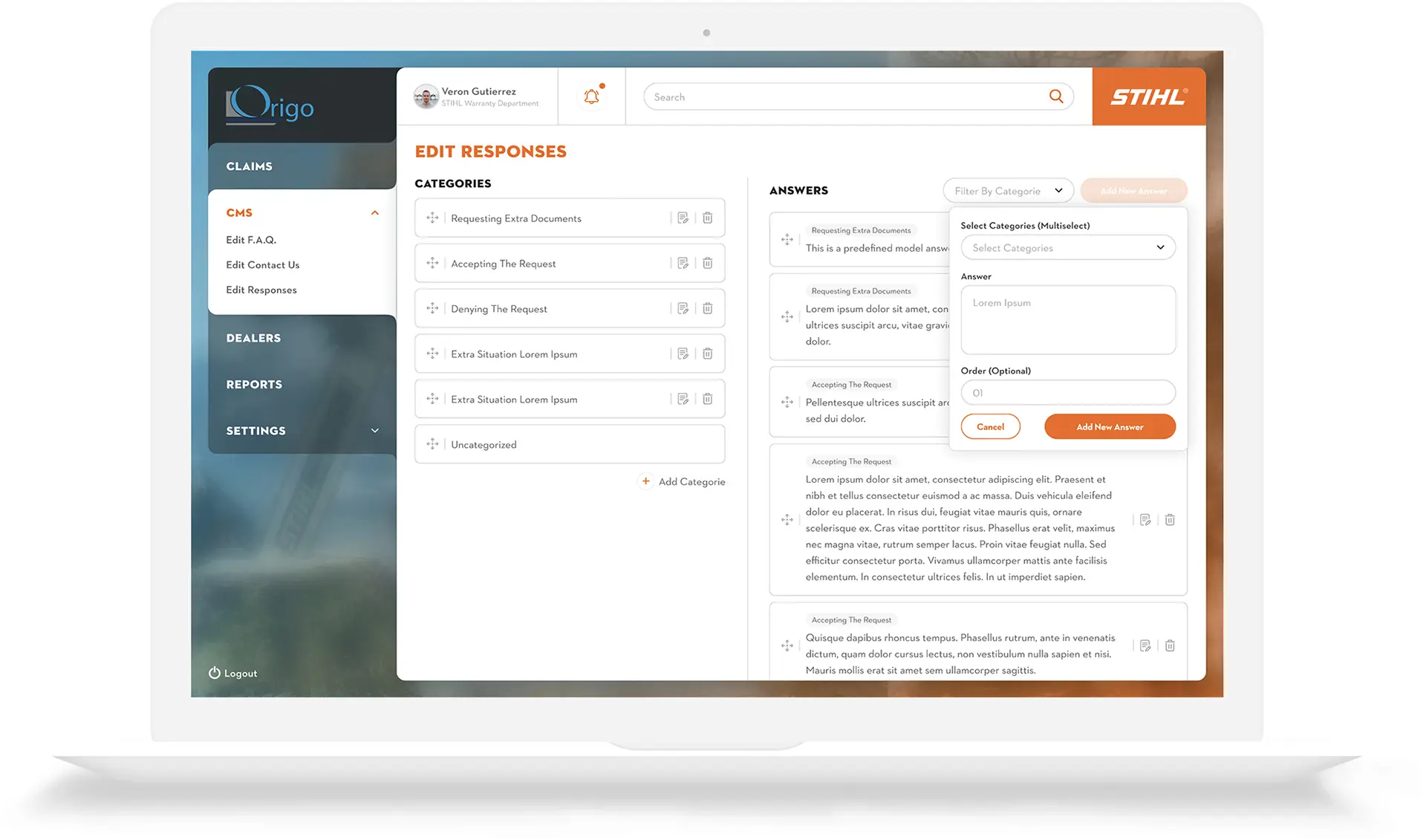
05. Add New Answer
New answers can be added to the Responses screen. Clicking the "Add new answer" button triggers a pop-up where the admin can insert new details.
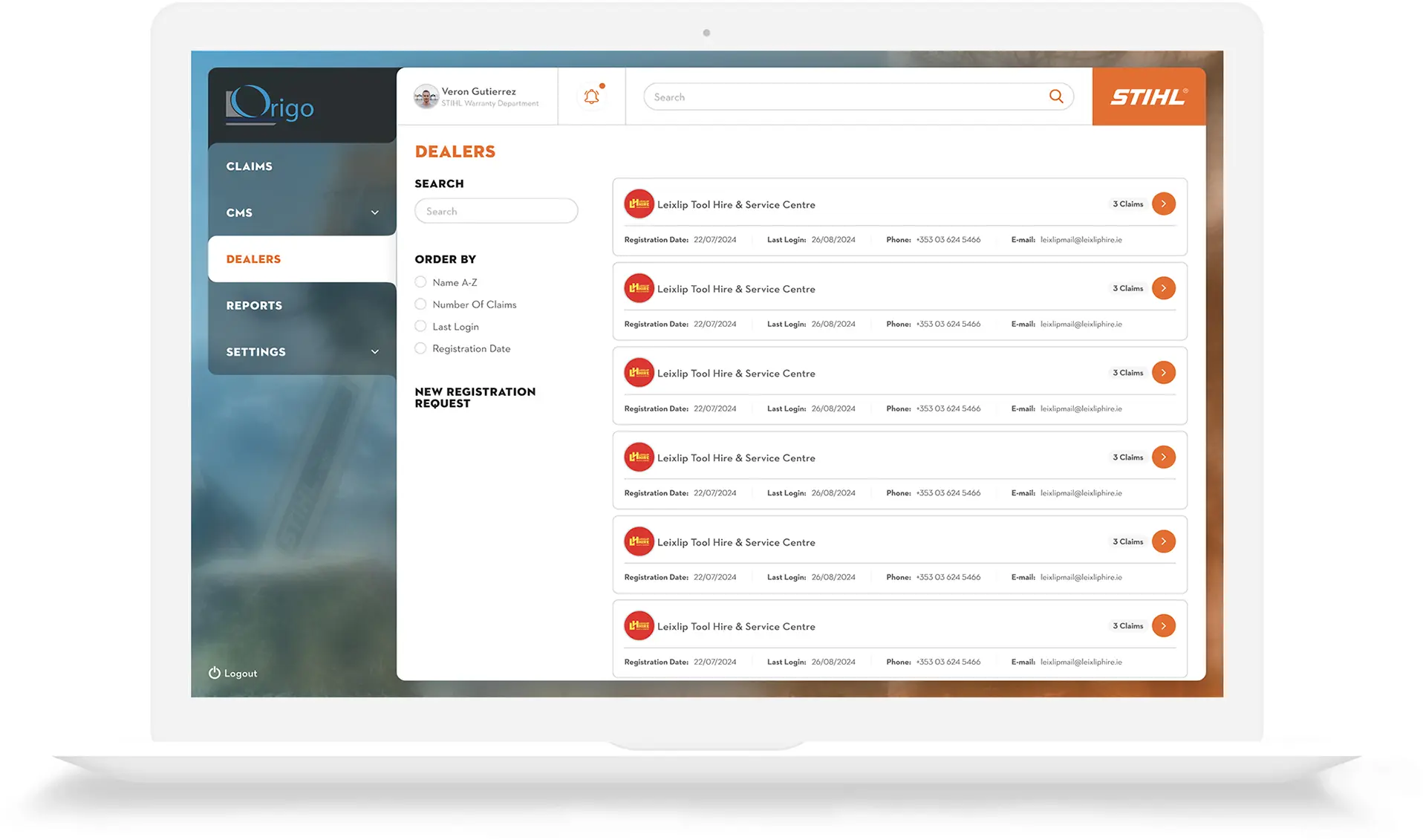
01. View all Dealers
Admin can filter the list of dealers. They can also search for a specific dealer and view new registration requests that come in through the Registration screen. This screen also displays essential details regarding the dealer such as email, phone and number of logged tickets.
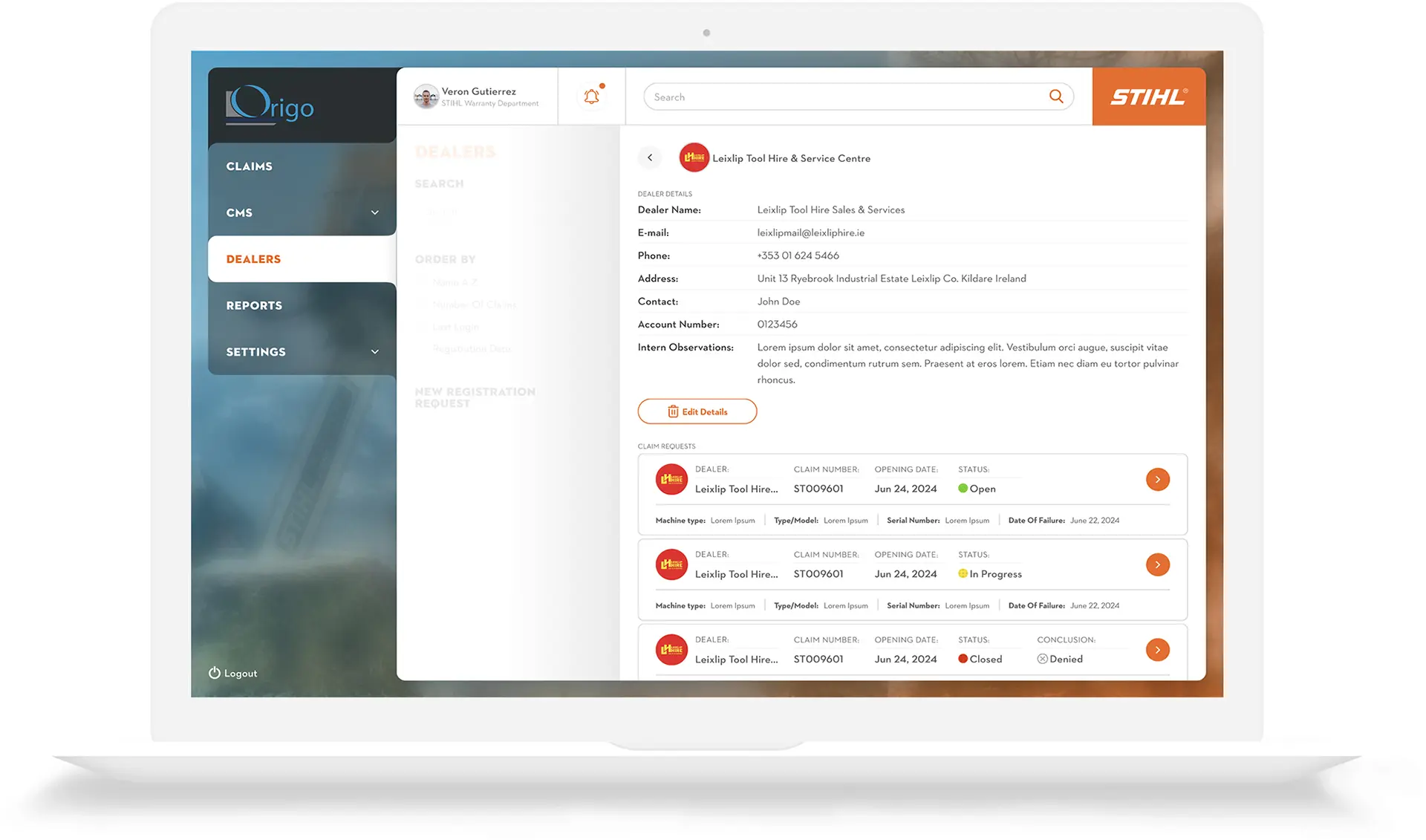
02. View all Claims by Each Dealer
Origo's admin can view each dealer that is registered on the system. They can also edit the dealer's details.
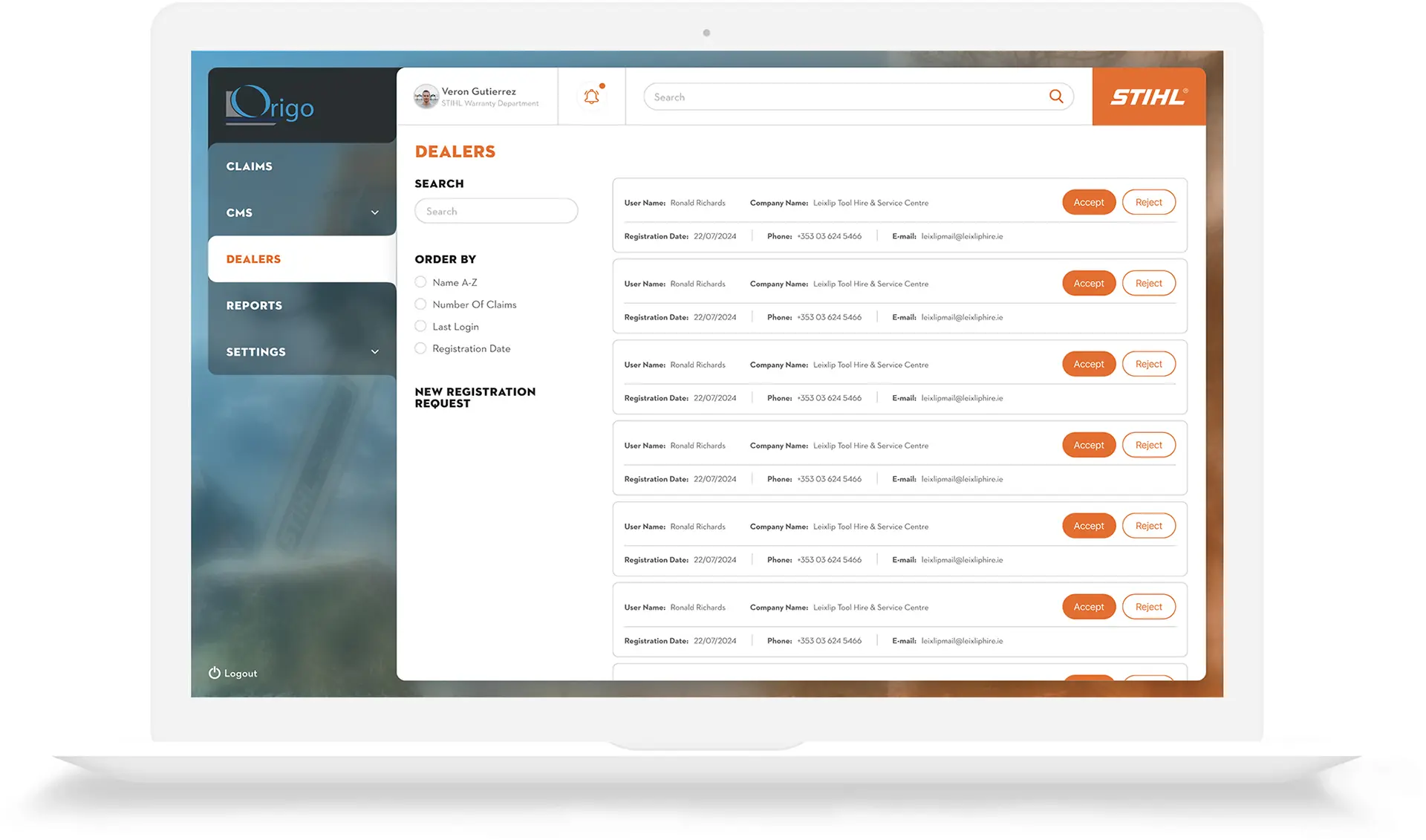
03. View New Registration Requests
When a dealer requests to register on the Stihl app, admin can view a list of them and decide whether to accept of reject the application.
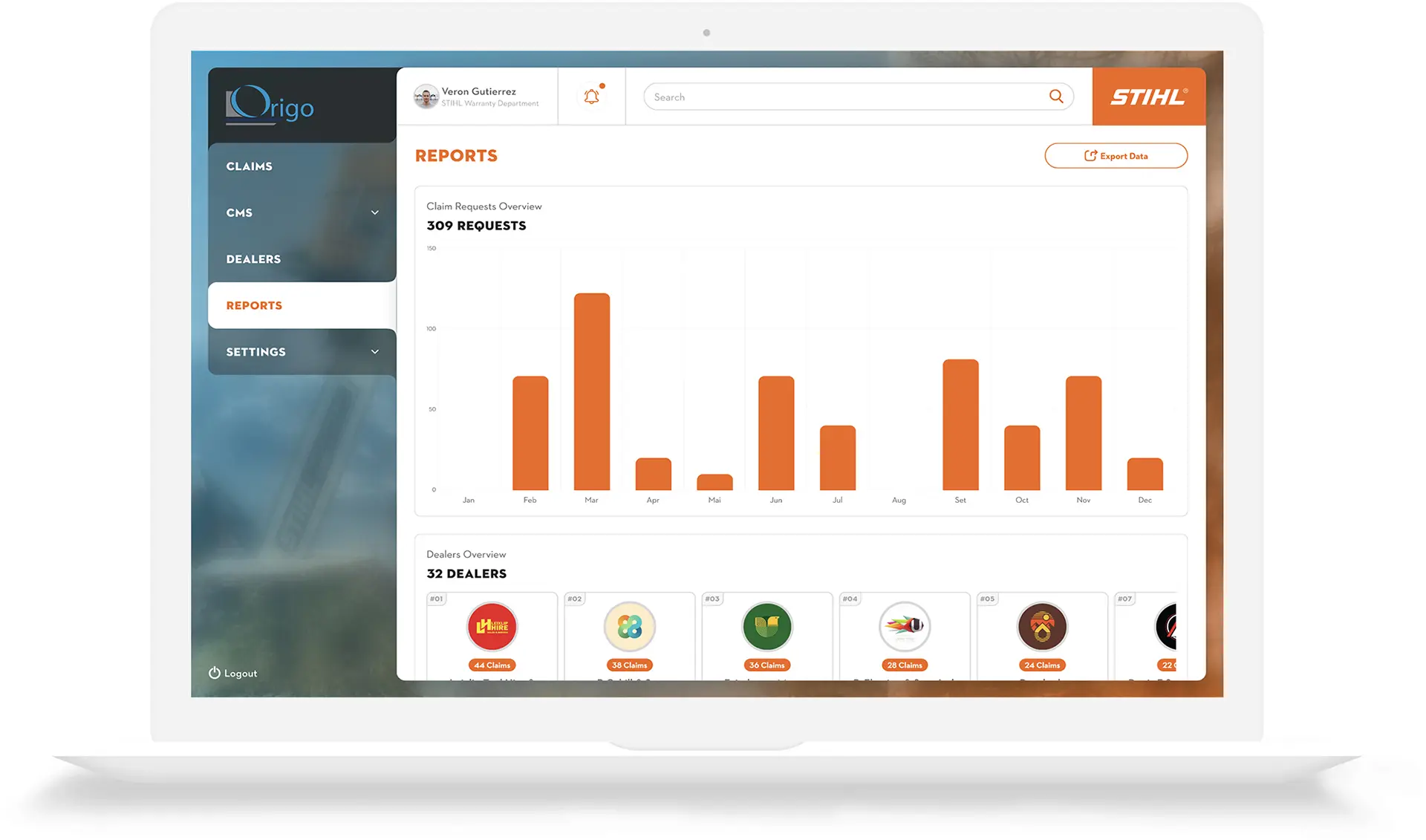
01. Views Reports
Claims are displayed by the month. Admin can also see an overview of their registered dealers.
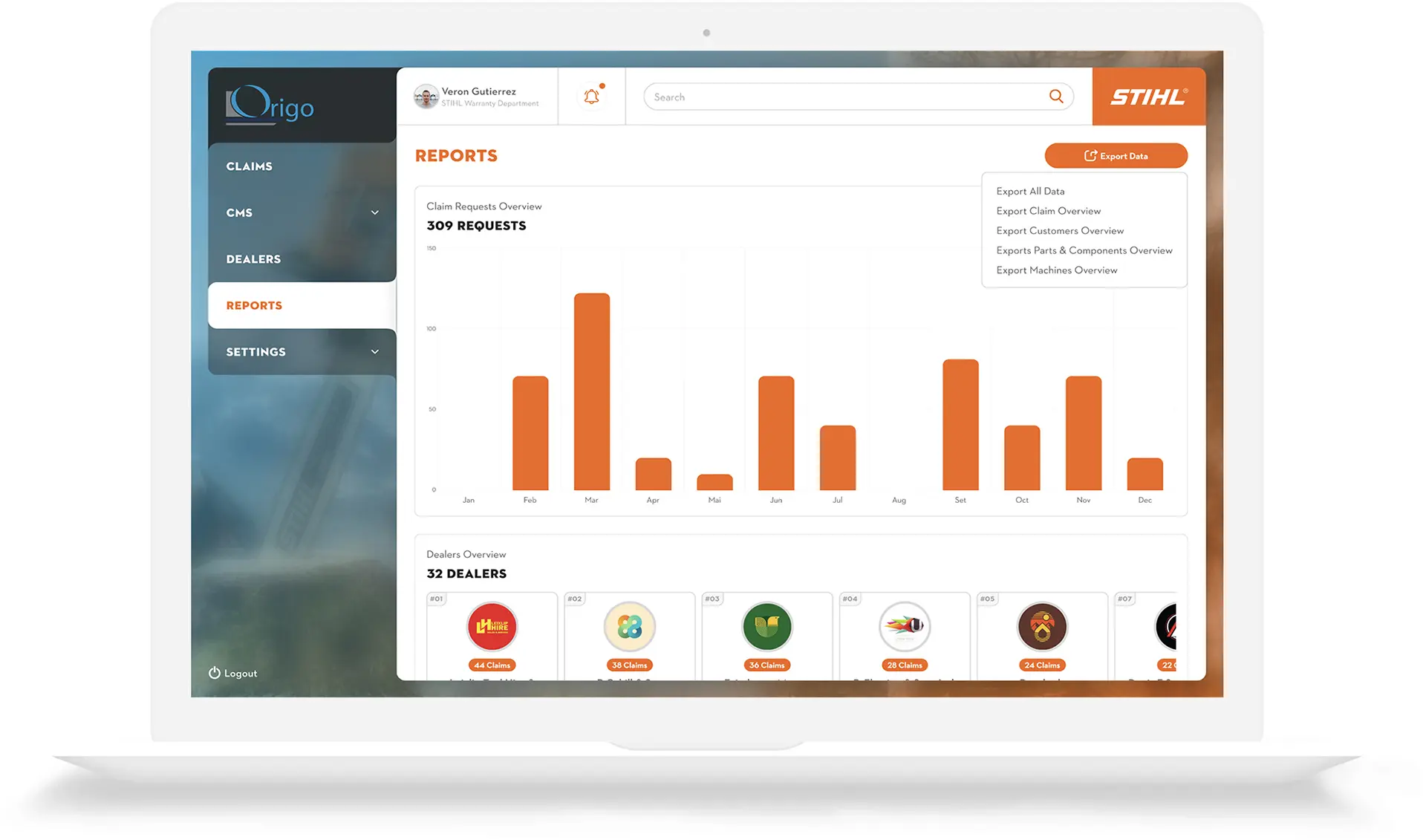
02. Export Data
By clicking the "Export Data" button, admin can choose the appropriate report that they'd like to generate. They can export all data, or just the specific type they need, eg. parts, claims or customers.
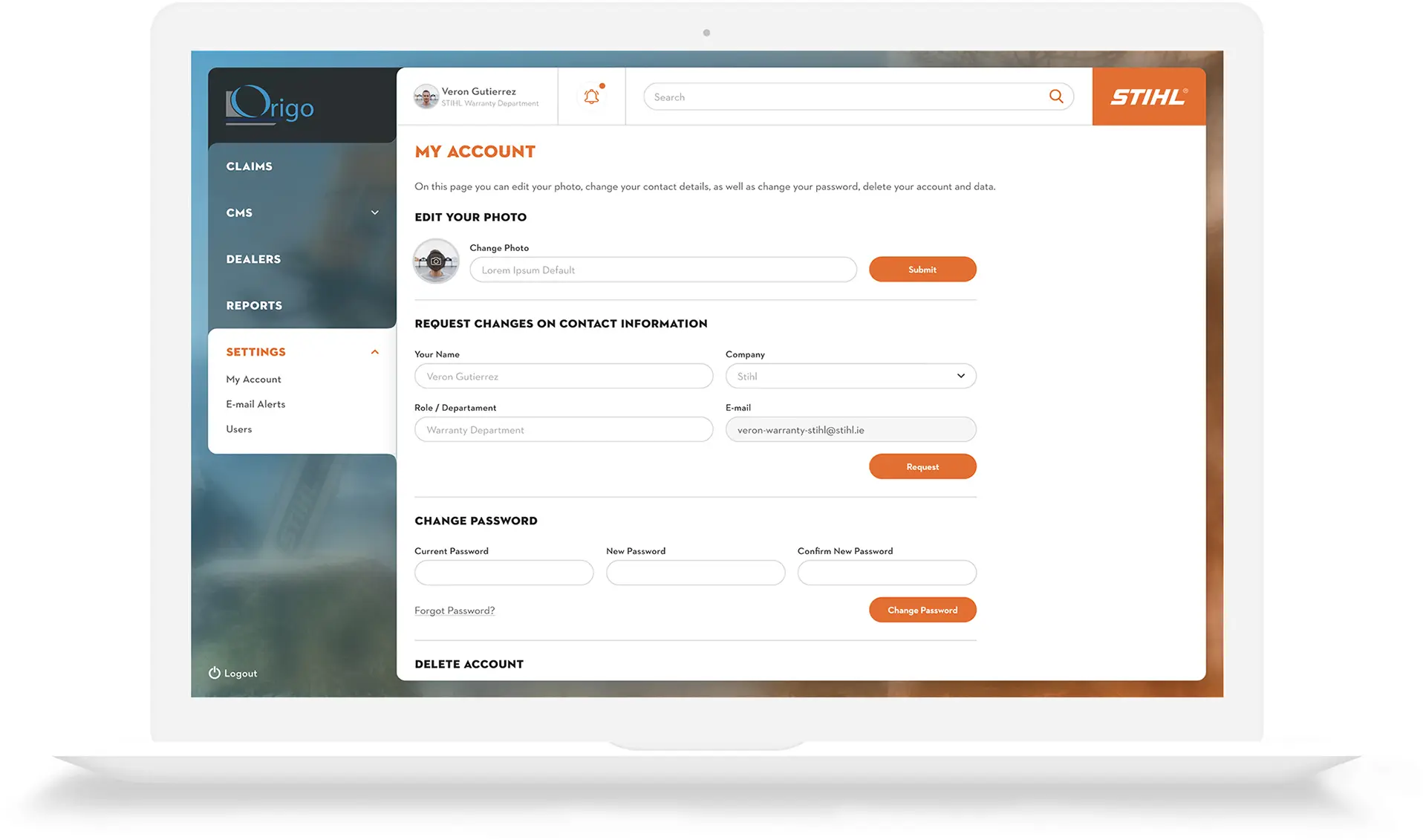
01. My Account
Origo admin staff can change their own account details such as their password, personal information and photograph.
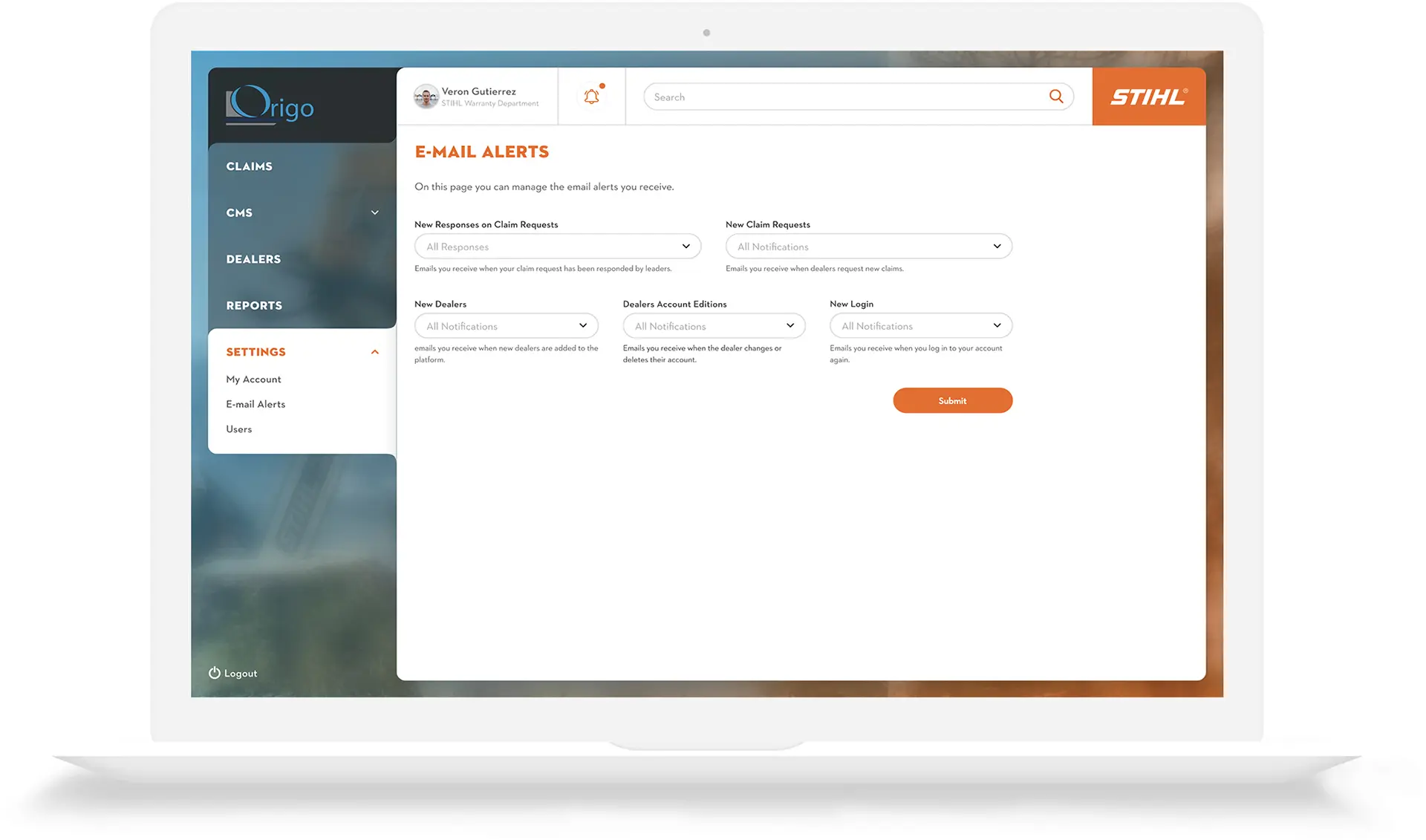
02. Email Alerts
Admin can manage email alerts here.
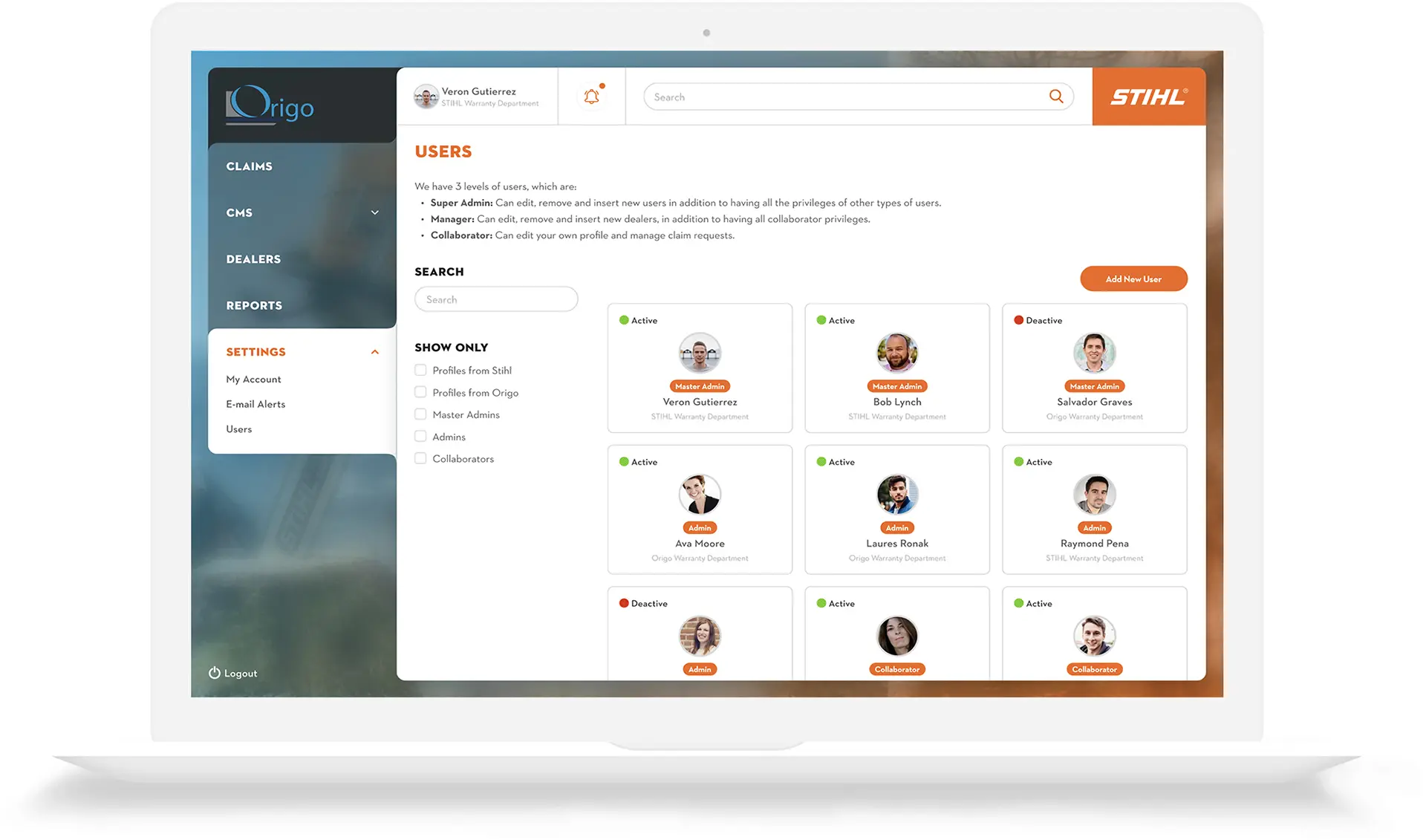
03. Users
Admin user profiles can be managed from this screen. There are three levels of users that have varying levels of access within the app.